
LabeljoyNew version
The Text section is where an element's words go. You type them in the text editor at the top; the settings under it say how they're laid out and drawn. The settings show up once there's some text.
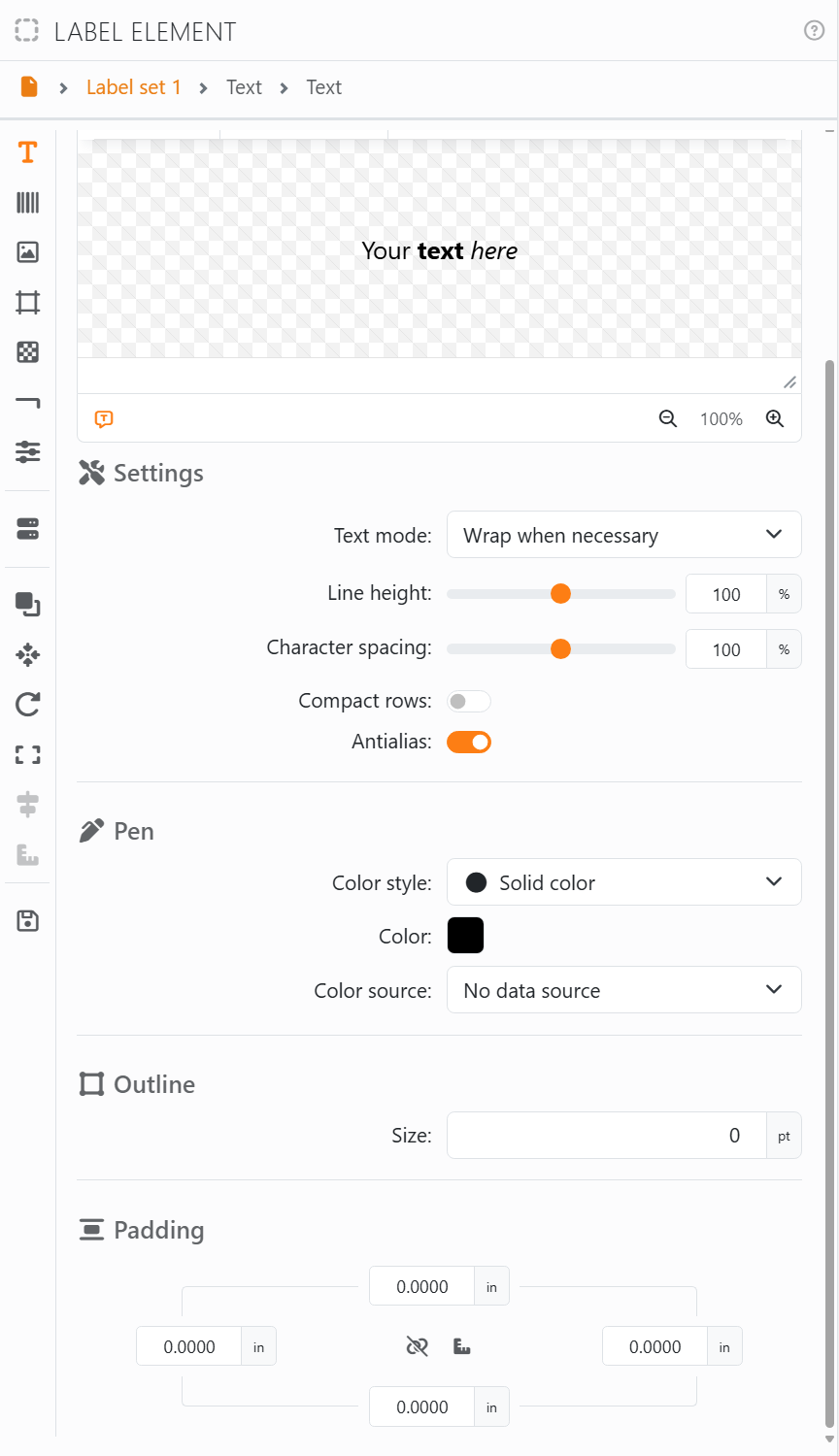
Text mode decides how the text fits into the element:
| Text mode | |
| Do not wrap | Each line stays one line, at the size you gave it. What doesn't fit is cut off. |
| Wrap when necessary | Long lines carry on underneath, like in a word processor. It's where a new element starts. |
| Grid | The text fills the cells of the element's grid: a | moves on to the next cell, a new line to the next row. |
| Shrink size when necessary | A line that's too big for the element gets smaller until it fits. |
| Enlarge size when possible | A line that's smaller than the element gets bigger until it fills it. |
| Fit size (shrink and enlarge) | Both: every line exactly fills the width. |
| Inward, Outward, Clock | The text goes round in a circle: Start angle says where it begins, Extension how much of the circle it uses. |
In the modes that change the size, each line is sized on its own, so the lines of one text can end up at different sizes. The text needs a grid - Line size above 0, and two rows or columns - for Grid to work; without one, it's laid out as Wrap when necessary.
| The other settings | |
| Line height | The space between lines. 100% is normal; double-click the slider to go back to it. |
| Character spacing | The space between letters, tighter or looser. 100% is normal. Not in the modes that change the size. |
| Compact rows | Leaves out empty lines - useful when a line comes from your data and is sometimes blank. |
| Antialias | Smooths the edges of the letters. Leave it on. |
| Pen | The color of the text: one color, or a fade. It can come from your data. |
| Outline | A line round the letters: Size, whether it's drawn behind the letters, in front, or with the letters left empty, and its style and color. See Borders for the line styles. |
| Padding | Space between the edge of the element and the text. See Padding. |
The font, the size, bold and italic, and the alignment are in the text editor. To turn a text, rotate the whole element: see Rotation.




























