
The element library holds ready-made elements - barcodes of every kind, texts, shapes, lines, grids, patterns, colors, and combinations of them - and the ones you save yourself. It opens when you click Add element in the toolbar.
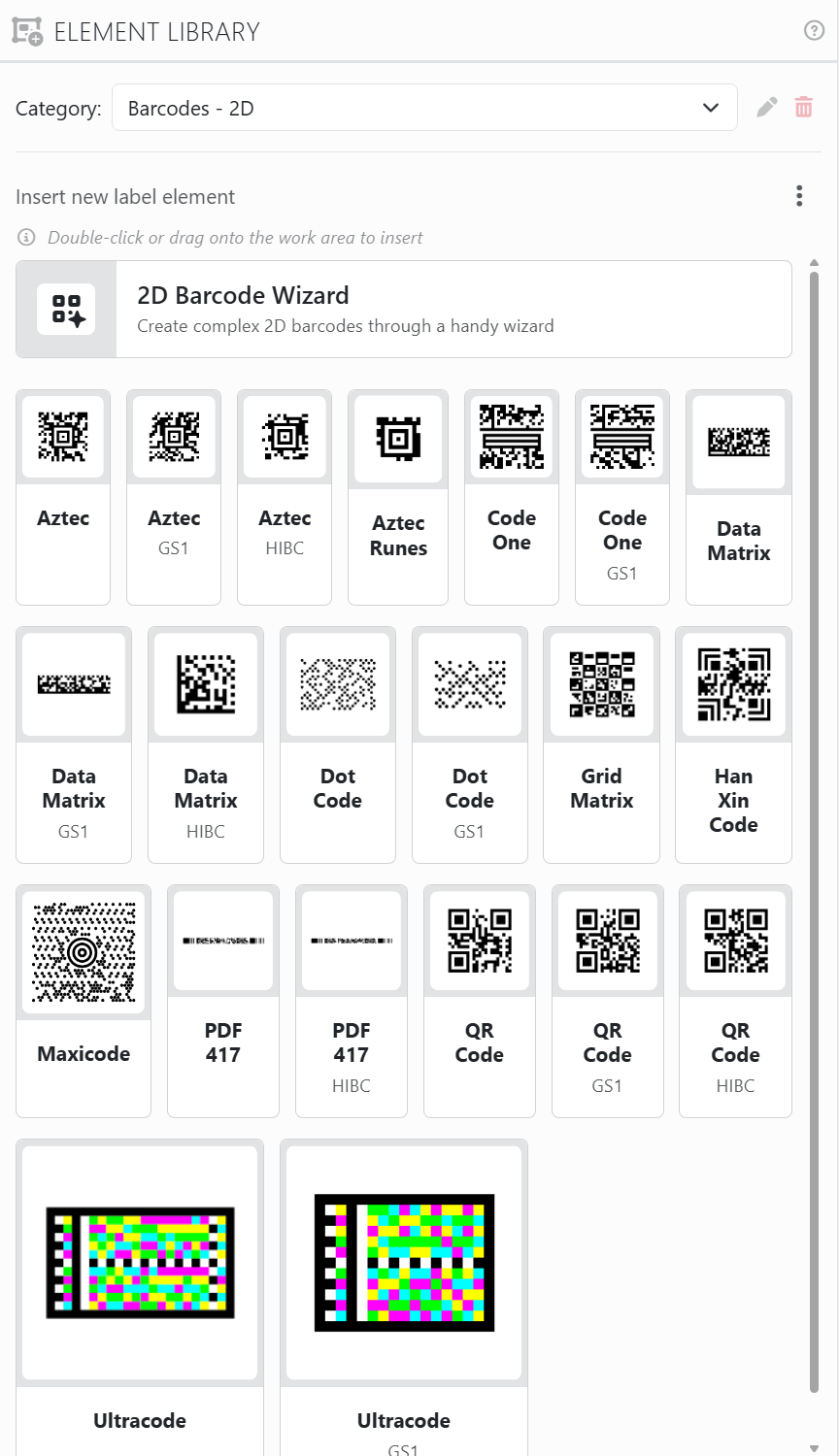
To add an element, pick a Category, then double-click a card to put the element in the middle of the label, or drag it onto the label you want. It arrives selected, ready to change.
| In the panel | |
| Category | Your own categories come first, under Personal, and the ones that come with Labeljoy after them, under Built-in. |
| The pencil and the bin | Rename or delete one of your own categories. When you delete one that still has elements in it, Labeljoy asks whether to move them to another category or delete them too. |
| ⋮ | Insert new label element or Insert new page element: whether what you add goes on the labels or on the page. The panel says which it's doing. The menu also has Save in element library. |
| A card | A preview, the element's name and a short description. A server icon means it's connected to a data source. |
| 2D Barcode Wizard | The first card of Barcodes - 2D. One click opens the 2D Barcode Wizard, which builds a QR code, or another 2D barcode, for a business card, a Wi-Fi network, an email and more. |
Page elements can only be added in page view. In label view, Labeljoy tells you so instead of adding one.
Saving your own elements. Select one element and choose Save in element library: from the ⋮ menu here, the disk at the bottom of the element panel's strip, or the element's right-click menu. Give it a Name, a Description if you like, and a Category - pick one of yours or type a new one. Everything in the element is saved with it.
| On one of your own cards | |
| The gear | Change its name or description, or move it to another category. |
| × | Remove it from the library, after asking. |
The library is yours, not the document's: it's there for every document you open, and changes to it can't be undone. An element connected to a data source keeps only the fields the label set you add it to has.
See also




























