
You don't have to type to Joy, the AI assistant: you can talk to it, and it can read its answers back to you. Both are set up in the gear at the top of the panel.
Dictation. Click the microphone next to Send, or press Ctrl+M, and say what you want. The microphone turns red while it's listening and the box says Listening...; your words appear in the box as you speak, after anything you'd already typed. It stops by itself when you pause - or click the microphone again.
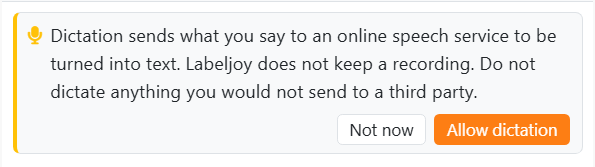
The first time, Joy asks first. Dictation sends what you say to an online speech service to turn it into text; Labeljoy doesn't keep a recording. Allow dictation starts listening straight away; Not now doesn't, and the microphone asks again next time you press it.
| Dictation mode, in the gear | |
| Hands-free | Sends what you said by itself: Sending in 2... counts down after you stop, and then it's sent. Press a key or click in the box to stop it and change the words first. When Joy has answered, the microphone opens again, so you can carry on talking. It's where Labeljoy starts. |
| Dictate only | Puts the words in the box and stops. Nothing is sent until you press Enter or click Send. |
| Turn off dictation | There once you've allowed dictation. It takes your permission back: the microphone asks again the next time you press it. |
Joy listens in the language Labeljoy is in, so speak that one. The microphone is gray while Joy is working, and it stops when you collapse or hide the panel.
| When dictation doesn't work | |
| Labeljoy could not use the microphone. | Windows isn't letting Labeljoy use it. Check the microphone settings in Windows' privacy settings. |
| No microphone was found. | Connect one and try again. |
| Dictation is not available just now. | Usually the speech service can't be reached: check your internet connection. |
Reading answers aloud. Tick Read answers aloud in the gear and Joy reads each answer once it's finished, with a voice installed on your computer - what it says never leaves your computer. Code and the cards under an answer aren't read. To stop it, click Stop, which shows up while Joy is speaking; it also stops when you send a new request, collapse the panel or press the microphone.
| Voices | |
| Voice | In the gear, when your computer has more than one voice for the language Labeljoy is in. Pick the one you like; Labeljoy remembers it for that language. |
| No voice for this language | Your computer has no voice for the language Labeljoy is in. Add one in Windows Settings, under Time & language, Speech, Manage voices. |




























