
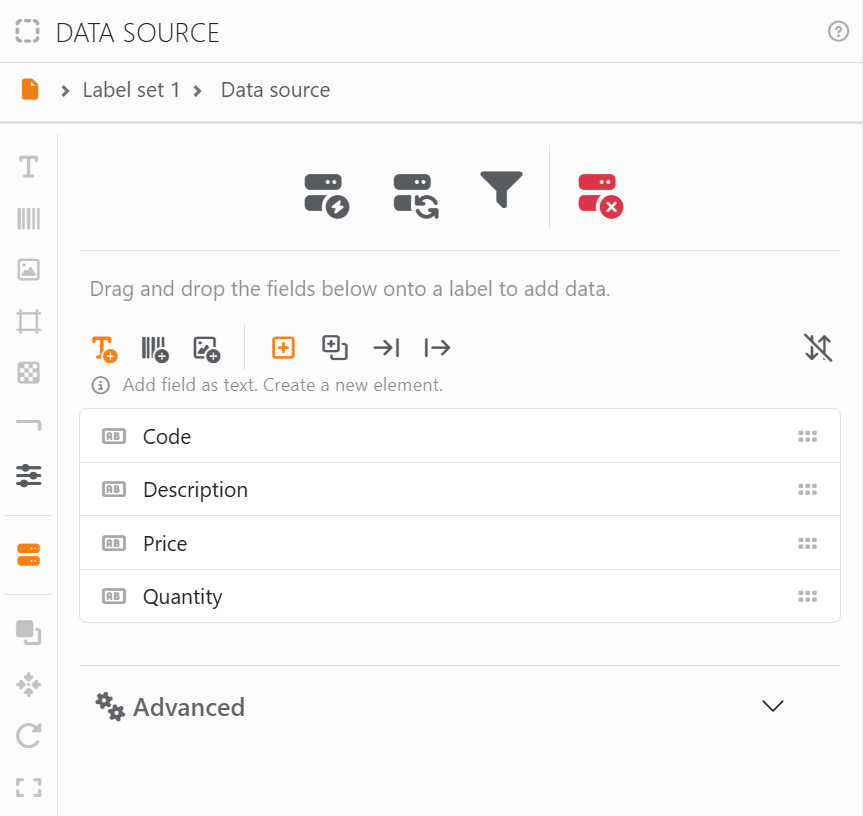
The Data source panel is where a label set meets its data: you connect it, you see its fields, and you drag them onto the labels. Open it with Data source in the toolbar, from the strip down the left of the Label set panel and the Label element panel, or by right-clicking a label and choosing Show field list.
A label set without data shows No data source available and a Connect data source button, which starts the Data connection wizard. Right-click a label with no data and Connect data source... does the same.
| The four icons | |
 |
Connect data source: opens the wizard with the connection you have, to change it or pick different data. Confirming replaces the data, removes the filter and the sort, and takes off the labels any field the new data doesn't have. |
 |
Update data: reads the source again. See Updating and removing a data source. |
 |
Filter and sort: prints only the rows you want, in the order you want. See Filtering and sorting. |
 |
Remove data source: disconnects the label set, after asking. See Updating and removing a data source. |
The fields are the columns of your data, each with an icon for the kind of values it holds - hover it to read which. Drag one onto a label of this label set, and it goes in as a field placeholder. The buttons above the list say what the drop does:
| What the drop makes | |
 |
Text: the field as text. |
 |
Barcode: the field as a barcode's value. |
 |
Image: the field as the image to show - a file path or picture data. Fields that can't hold one are dimmed. |
| Where it goes | |
 |
Create a new element: a new element, named after the field, where you drop it. |
 |
Add or replace: into the element you drop it on. An element that shows no text or barcode yet - only an image or an effect - gets one; one that has it gets the field in its place. |
 |
Add at the beginning of an existing element: before what the element says, with a space in between for a text. |
 |
Append at the end of an existing element: after it, the same way. |
 |
Sort: lists the fields Unsorted, as in your data, or by name, Ascending or Descending. It only orders this list, not your data. |
An image takes a field only as a new element or in place of the one it shows, so the last two are dimmed while Image is chosen. Every drop can be undone.
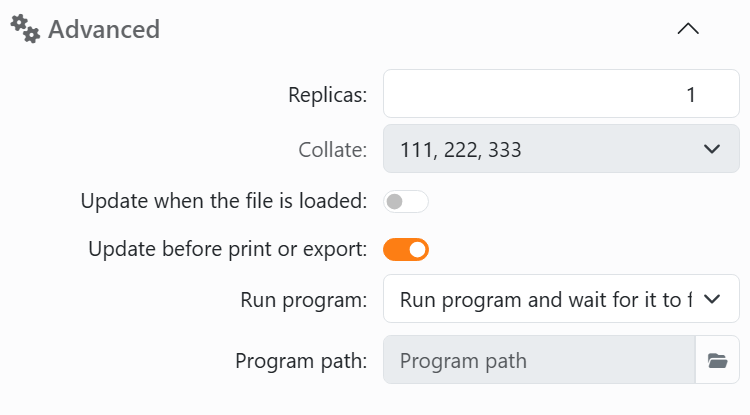
| Advanced | |
| Replicas | How many copies of each row's label, up to 65535. |
| Collate | With more than one replica, in which order they come: 123, 123, 123 - the whole list, then again - or 111, 222, 333 - each row's copies together. |
| Update when the file is loaded | Reads the source again every time you open the document. |
| Update before print or export | Reads it again just before you print or export, so the labels are always up to date. |
| Run program | A program Labeljoy runs each time the data is updated, right before reading it - say, one that exports your data to the file you connected. Do not run any program, Run program and don't wait, Run program and wait for it to finish or Run program and wait for success, where success means the program ended without an error code. The options show up while one of the two switches above is on. |
| Program path | The program. Pick it with Select program; afterwards its menu has Change and Clear. |
| Optional arguments | What to pass to the program, as you'd type it after its name. |
| Maximum wait time | When Labeljoy waits: how long, in milliseconds, before it stops the program. 0 waits as long as it takes. |
| Ask before running | Asks you each time before starting the program. |
| Hide window | Runs it without showing its window. |
| Run as administrator | Runs it with administrator rights, once you've confirmed. |
A program you've set runs whenever the data is updated - with Update data as well as with the two switches.




























