
Let's make a label from scratch: a shelf label with a product name and a barcode, on a sheet of Avery 5160 - 30 labels, 3 across and 10 down. It takes about five minutes. If yours are different, follow along anyway and pick them in step 2.
1. Start a new document. On the home screen, click New project. If a document is already open, click New document in the toolbar, then Factory default template.
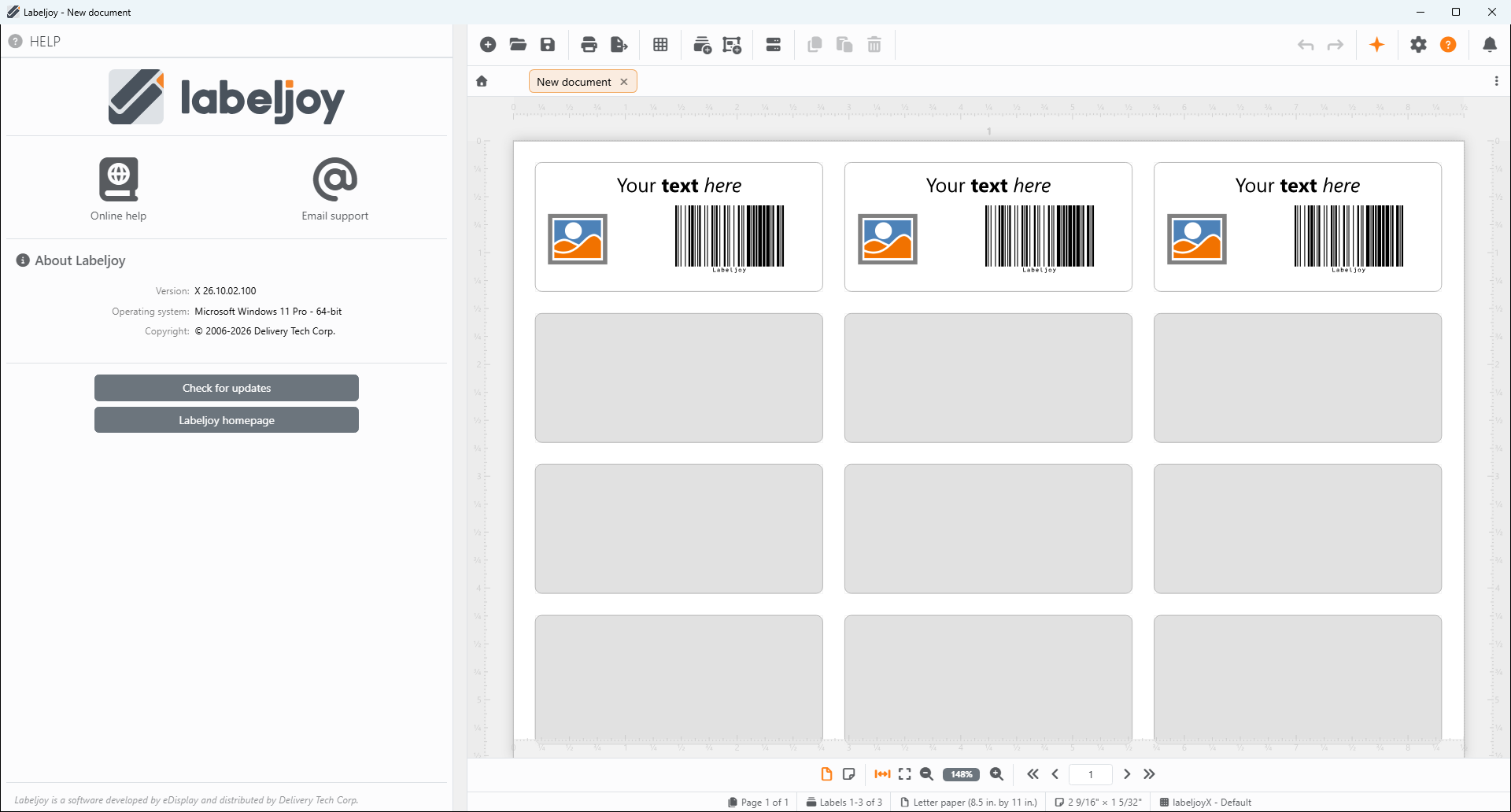
The document starts with three labels, each with a text, a picture and a barcode, ready for you to change. The rest of the sheet is gray: those places are empty and won't print. You'll fill them in step 6.
If you've saved a default template of your own, New project starts from that instead. To follow along, use Factory default template in the New panel.
2. Choose your labels. Click Layout in the toolbar. The Layout panel opens on the layout library:
- Click the box at the top and type 5160. The model is usually printed on the box of labels.
- Pick Avery - 5160 from the list. Labeljoy shows its details and a preview of the sheet.
- Click Apply.
The paper, the margins, the gaps and the size of the labels are all set for you. Some models appear twice in the list, with slightly different details - pick the one that matches your box. If your labels aren't in the library, set them up yourself in the Layout panel.
3. Write your text. Click Your text here on any label. The Label element panel opens on its Text section, with the text in the editor at the top. Select the words and type your own: Ceramic mug.
It shows on the label half a second after you stop typing - on every label at once. That's because all the labels of a label set share one design: change one, and you've changed them all. The font, the size, bold and the rest are in the editor's toolbar.
4. Set the barcode. Click the barcode. The panel switches to its Barcode section. In Text to encode, replace Labeljoy with your code: LJ-1001.
This barcode is a Code 128, which takes letters and numbers. For an EAN or a QR code instead, change the Symbology - see Barcode symbologies.
5. Remove the picture. This label doesn't need one. Click the picture, click Delete in the toolbar, and confirm with Delete. Changed your mind? Undo brings it back.
6. Fill the sheet. Click an empty part of a label, away from the text and the barcode. The Label set panel opens: set Number of labels to 30, for a full sheet.
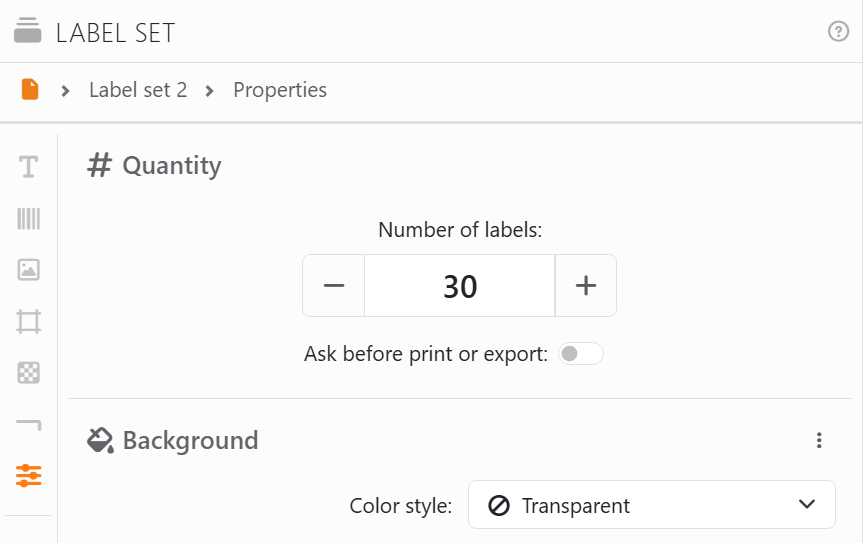
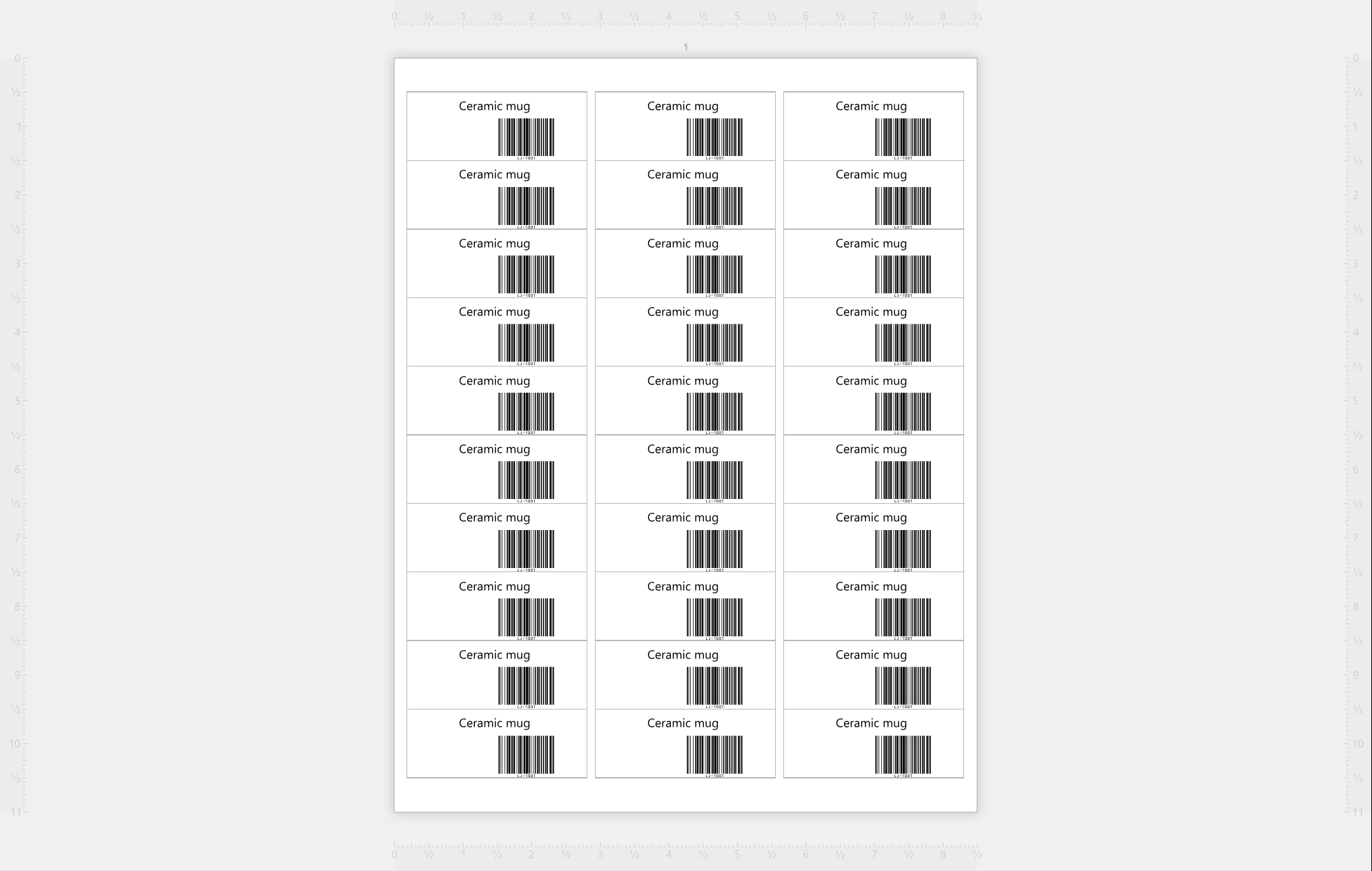
That's how many labels the document prints. Ask for more than a sheet holds and Labeljoy carries on onto a second sheet. Here's the finished sheet:
7. Save it. Click Save file in the toolbar, then Save as..., and give your document a name. From then on its tab shows that name. See the Save panel.
8. Print. Click Print in the toolbar. Pick your printer under Select printer, and click Print now. The Print panel has the rest: copies, which pages, and so on.
Print on plain paper first. Hold the page against a sheet of labels, up to the light: if everything sits inside its label, load the labels and print for real. If it doesn't line up, check the paper size in your printer's preferences - the gear next to the printer - and see When the page does not match the printer.
Used some labels of a sheet already? You don't have to waste the rest: tell Labeljoy which label to start from - see Print start position.
| Where to go next | |
| Labels from a spreadsheet | The same label, with a different product on each one - from your data. |
| Adding elements | More texts, barcodes, pictures and shapes on your label. |
| Moving, resizing and rotating | Putting things exactly where you want them. |
| Output | Printing, and saving your labels as PDF or pictures. |
You can also just ask: tell Joy, the AI assistant, "make me shelf labels for Avery 5160 with a product name and a barcode", and change what Joy makes.




























