
The layout library
The layout library knows the layout of almost 10,000 label sheets from 68 brands. Find yours by its brand and model and Labeljoy sets up the paper, the labels and the gaps for you. It's the Layout library section of the Layout panel: click Layout in the toolbar, then the first icon on the left of the panel.
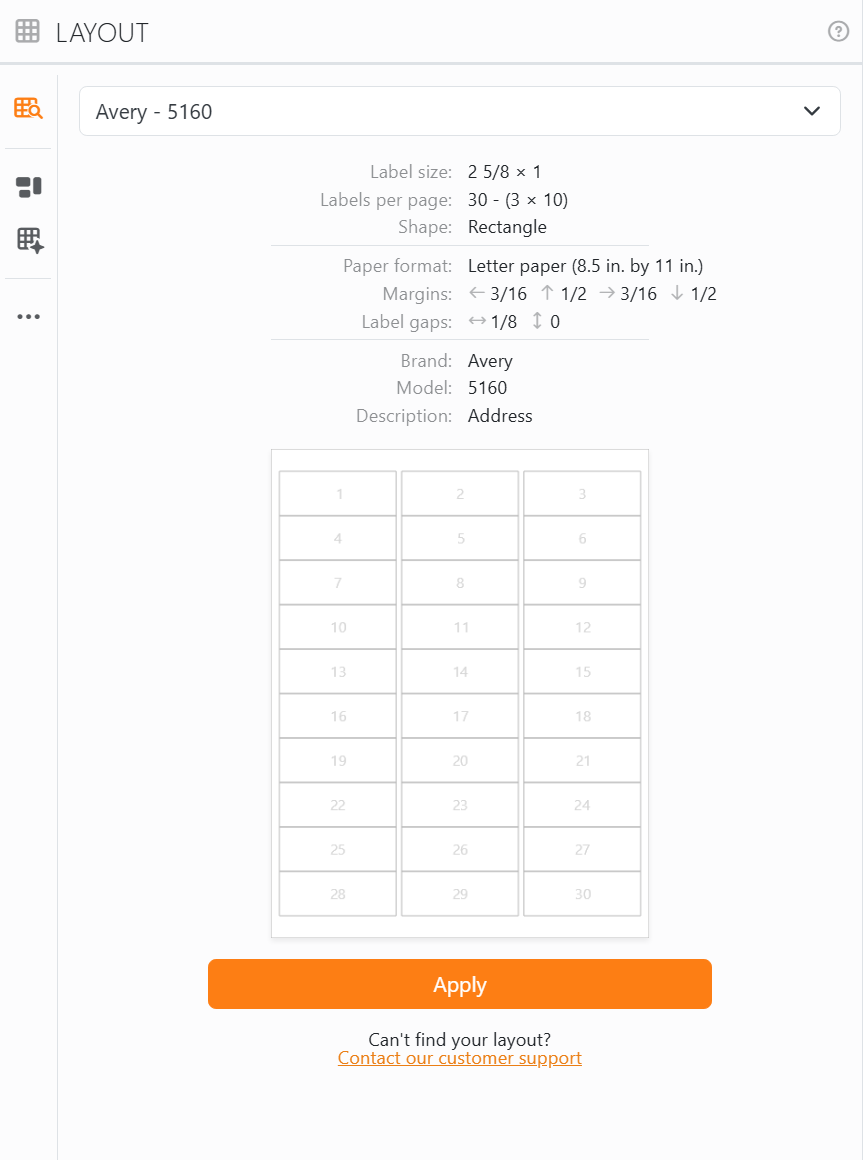
To use a layout from the library:
- Click the box at the top, Enter the layout name or brand to search the library, and type the brand, the model, or both - Avery 5160, or just 5160. The model is usually printed on the box of labels.
- Pick it from the list. Labeljoy shows its details and a preview of the sheet.
- Click Apply.
That sets the paper, its orientation, the columns and rows, the margins, the gaps and the label shape. Your label sets and their elements stay as they are. Changed your mind? Undo puts your old layout back.
| The details | |
| Label size | The width and height of one label. |
| Labels per page | How many labels fit on a sheet, and how many columns and rows they're in. |
| Shape | The label's shape, such as Rectangle or Rounded Rectangle. |
| Paper format | The paper, such as Letter or A4. A sheet of an unusual size also shows its Paper size. |
| Margins | The space from the left, top, right and bottom edges of the paper to the labels. |
| Label gaps | The space between two labels, across and down. |
| Brand, Model, Description | What the manufacturer calls it. |
Inches or centimeters. The details are in the units you chose in Units, in the Settings. Choose Both - Treat each file independently and every layout shows its own units instead, the ones its sheets are made in: a sheet on Letter paper in inches, a sheet on A4 in centimeters.
Some models appear twice in the list, with slightly different details. Compare the details with your sheet before you click Apply.
Your own layouts. Set up a layout that isn't in the library, and you can save it there to use again: give it a Brand and a Model in the Advanced section of the Layout panel and click Save in library. From then on it's in the list with the others - yours only: someone else who signs in to the same computer doesn't see it. When you pick one of your own layouts, Delete custom layout appears under Apply, to take it out of the library after asking. The layouts that come with Labeljoy can't be deleted or replaced.
Labels that aren't in the library. Click Contact our customer support under Apply: it opens a page on the Labeljoy website where you can ask for them to be added. In the meantime, set the layout up yourself in the Layout panel.




























