
LabeljoyNew version
A counter placeholder numbers your labels: 1 on the first, 2 on the next, and so on - or in letters, in hexadecimal, in reverse, or in increments of ten. Insert it from the Counters menu in the text editor or in a barcode, and select the type:
| The kinds of counter | |
| Decimal | 0, 1, 2 ... 9, 10, 11 - the usual numbers. |
| Hexadecimal | 0 ... 9, A ... F, 10, 11. |
| Binary | 0, 1, 10, 11, 100. |
| Alphanumeric | 0 ... 9, then A ... Z, then 10, 11. |
| Alphabetical | A ... Z, then AA, AB ... AZ, BA - the way spreadsheet columns go. |
| Custom | The characters you choose, in Custom counter base. The first one counts as zero: with XYZ, the counter goes X, Y, Z, YX, YY. |
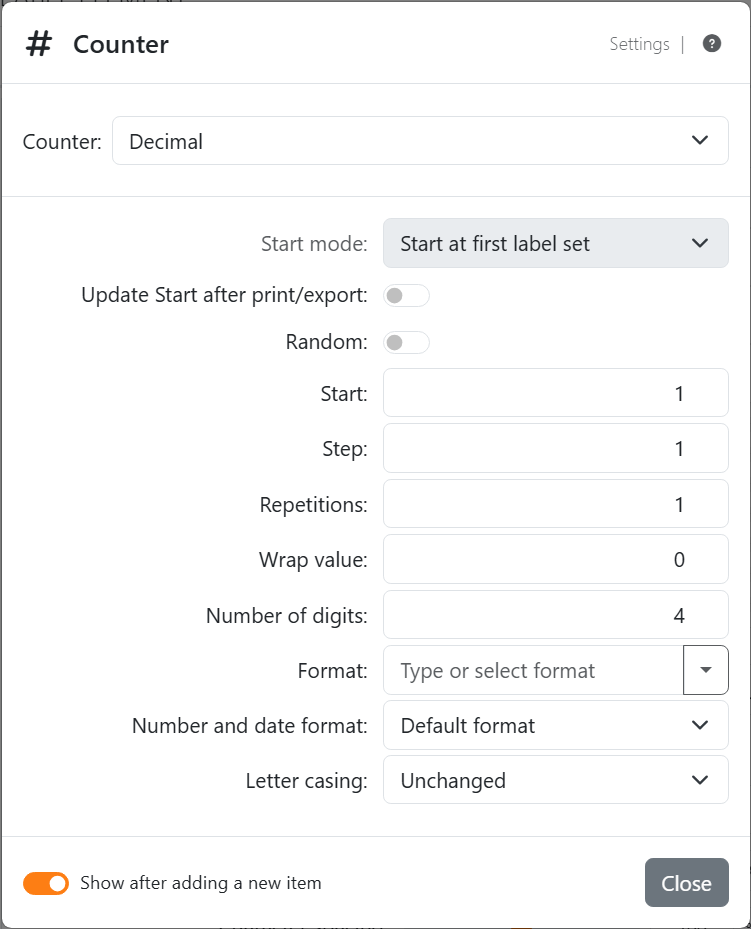
A new counter starts at 0. For labels numbered from 1, set Start to 1.
| The Counter settings | |
| Counter | The kind, as above. |
| Custom counter base | For Custom: at least two characters, none of them twice. |
| Start mode | With more than one label set, select Start at first label set to count from the first to the last label in the document; Start at current label set starts over on each label set. Not available when the document has only one label set. |
| Update Start after print/export | After each print or export, Start moves on, so the next job carries on from where this one stopped instead of printing the same numbers again. You can undo the change. |
| Random | A random value on each label instead of a sequence: Start and Step become Minimum and Maximum, and each label gets a value between the two, both included. No value comes back until every value in the range has been used: with Minimum 1 and Maximum 10, the first ten labels show 1 to 10 in a random order, and the next ten show them again in a new order. The values stay the same every time you look or print. |
| Start | The value of the first label. |
| Step | How much the counter increases on each label: 10 counts in steps of ten, and a negative step counts backward. It cannot be 0. |
| Repetitions | How many labels in a row show each value before it moves on: with 3, the labels read 1, 1, 1, 2, 2, 2. |
| Wrap value | The value before the counter resets to Start: with Start 1 and Wrap value 5, the labels display from 1 to 5, then from 1 to 5 again. 0 means it never wraps. |
| Number of digits | The minimum length of the value, padded from the left: with 4, 7 prints as 0007. The padding character is the zero of the counter - 0 - or the first character of a custom base; for Alphabetical, which has no zero, a space is used. |
| Format, Number and date format | For Decimal counters: thousands separators, decimals, percentages - see Number and date formats. |
| Letter casing | For counters with letters: all in lowercase gives a, b, c ... and ALL IN UPPERCASE A, B, C. |
| How labels are counted | |
| Across the pages | The count progresses from page to page, in the order specified by the Rendering order in the Layout panel. Positions left blank by the print start position are not counted. |
| With data | One step per label - so with Replicas, each copy receives the next value. To give the copies the same value, set Repetitions to the same number. |
| Printing some labels | Labels keep their numbers: print labels 5 to 10 and they read 5 to 10, as on the work area. |
| In a page element | It counts pages, not labels. |
| Two counters | Each counter keeps its own settings. Two with the same settings show the same value on the same label. |




























