
The Label set panel holds what the labels of a label set share: how many there are, their background and their border. It opens when you click a label away from its elements, when you right-click a label and choose Edit common properties, and with the pencil next to the label set in the Document panel.
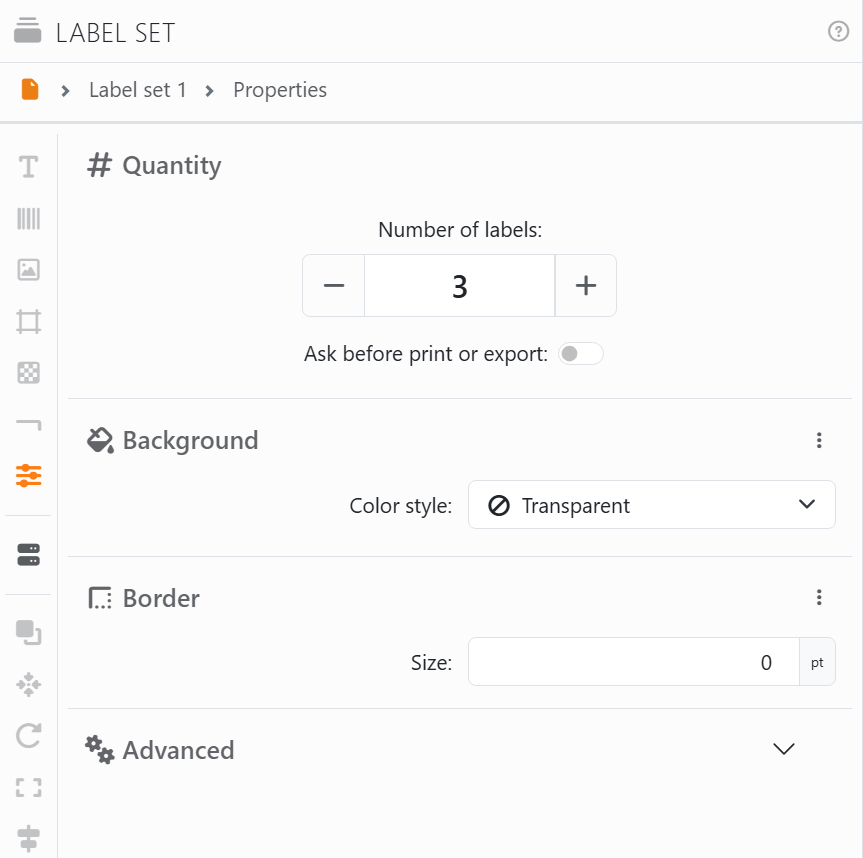
| Quantity | |
| Number of labels | How many labels the label set prints. Type it, or use − and +. |
| Ask before print or export | Labeljoy asks for the number of labels every time you print or export, instead of using the one above. |
When the label set is connected to a data source, the number of labels comes from your data - one label per row, or a number of labels for each row taken from a column (see Label sets) - and both are dimmed: Quantity settings are disabled because a data source is present.
| The other sections | |
| Background | The color behind everything on each label. Color style is Transparent, Solid color, Linear fade or Radial fade; Color source can take the color from your data, so each label gets its own. |
| Border | A line around each label: its Size, style and color. At a Size of 0 there's no border. |
| Advanced | The label set's Name, up to 32 characters. It's how the label set is shown in the Document panel and in the path at the top of the panels. |
The strip on the left is the same as an element's, as the panels of a label set and of its elements go together. On a label set, Properties is this panel and Data source opens the Data source panel, where you connect the label set to your data. The rest is for elements, and dimmed here.




























