
A label set is a group of labels that all share one design. It has its own elements - the texts, barcodes and pictures on it - its own data source, and a number of labels. A new document has one label set, and for many jobs that's all you need.
More than one label set prints different labels on the same sheets. Each label set starts where the one before it ends, in the next free label - not on a new page - and takes as many labels, and as many pages, as it needs. Here, the 3 labels of the first set are followed by 6 of a second one:
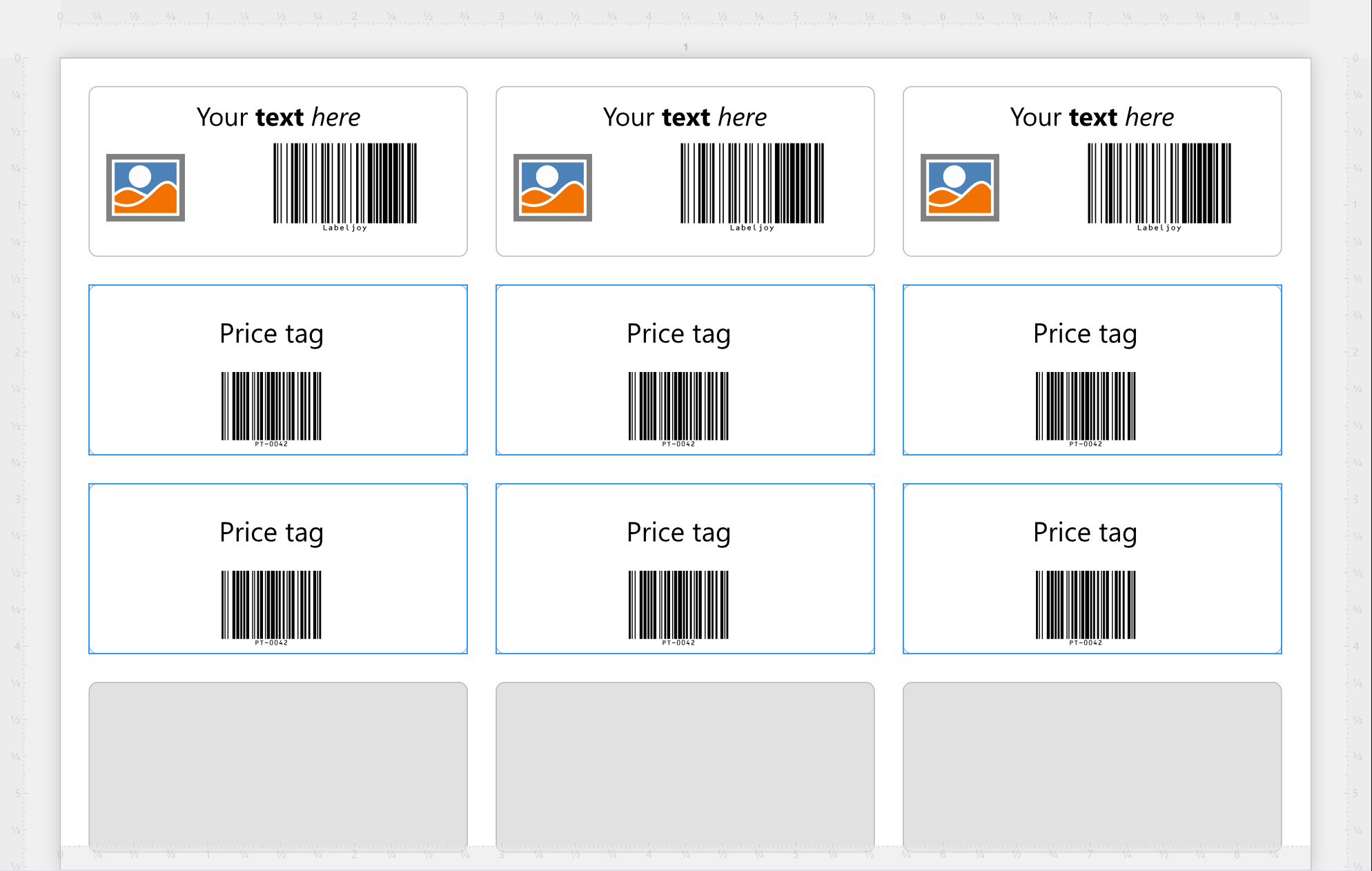
The label sets are printed in the order the Document panel lists them.
| How many labels | |
| Without a data source | You choose: Number of labels in the Label set panel. Switch on Ask before print or export and Labeljoy asks for the number each time instead. |
| With a data source | The data decides: one label for every row, or as many as a column of your data says for each row - pick that column as the Quantity field when you connect the data in the Data connection wizard. Replicas, in the Data source panel, makes copies of each on top of that. |
To add a label set, click Add label set in the toolbar,
or right-click a label or the page. Labeljoy asks How would you like to create your new label set? -
 Help, at the top right of that dialog, opens this page:
| New label set | |
| Default set | A label set with a text, a picture and a barcode on it, ready for you to change. |
| Copy of the set | A copy of the label set you selected - or of the only one - with its name shown under the button. A copy of a label set with a data source is connected to the same data. |
| Blank set | A label set with nothing on it. |
| Label quantity | How many labels it has, from 1 to 9999. It starts at a sheetful. |
| Label set name | What to call it, so you can tell your label sets apart in the Document panel. |
Working on a label set. Click a label away from its elements, and the label set is selected and its Label set panel opens. Right-click a label for Edit common properties, which does the same, and for Copy, Paste, Cut and Delete of the whole label set. Undo brings back one you deleted by mistake.
You can even delete the last label set: the document then has no labels, and you can add a new label set whenever you want one.




























