
The Print panel sends the document on screen to a printer. Open it with Print in the toolbar, or with Ctrl+Shift+P. Everything you set here is saved with the document, so next time it prints the same way.
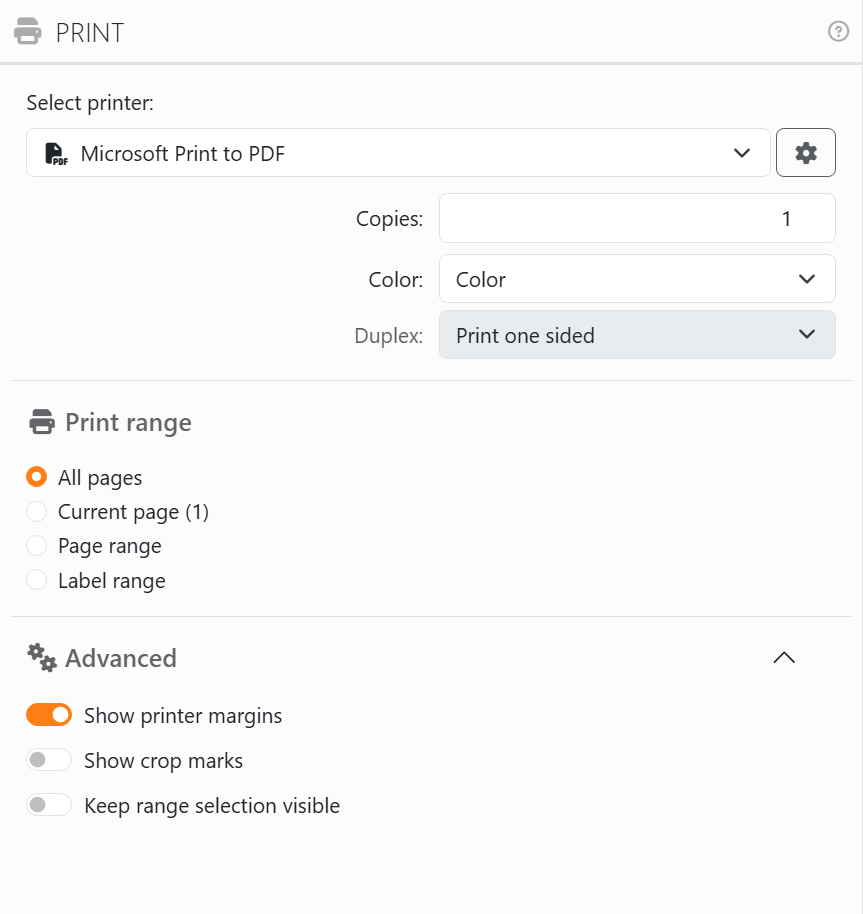
| The printer | |
| Select printer | Every printer installed on your computer, with an icon for the kind it is. Your default printer is chosen for a new document. If the printer a document was saved with isn't there any more, Labeljoy switches to the default one and puts the print settings back to their defaults. |
| The gear | Printer preferences: the printer's own settings window, with whatever your printer offers - paper tray, quality, and so on. What you choose there is saved with the document. The paper size and orientation you pick there become the document's too, and Copies, Color and Duplex below follow what you chose. Undo takes it all back. |
| Copies | How many copies of what you're printing. |
| Collate | Shows up for more than one copy. On, each copy comes out whole, in page order: 1,2,3 - 1,2,3. Off, you get all the copies of each page together: 1,1,1 - 2,2,2. |
| Color | Color or Grayscale. Dimmed when the printer can only print black and white. |
| Duplex | Print one sided, Both sides, flip on long edge or Both sides, flip on short edge. Dimmed when the printer can't print on both sides. |
Added a printer while Labeljoy was open? It shows up in the list the next time you open this panel.
| Print range | |
| All pages | The whole document. |
| Current page | The page on screen, or the pages, if the work area shows more than one. It says which, as in Current page (3). |
| Page range | From Page start to Page end. |
| Label range | From Label start to Label end, counting every label of the document. Label placement says where on the paper they go: see Print start position. |
| Auto-advance after print | For a page range or a label range. After each print, the range moves on to the next ones of the same length - print labels 1 to 10, and next time it's 11 to 20. When it runs past the end of the document, it goes back to the start. It only moves when the print went through: cancel it and the range stays where it was. |
While the Print panel is open, the work area outlines the page range or the label range you've chosen. A start that comes after the end is shown in red, and Labeljoy won't print it.
| Advanced | |
| Show printer margins | Outlines the edge of the page the printer can't reach, in page view. It's only on screen, and it follows the printer you've chosen - a label that crosses it will be cut. |
| Show crop marks | Draws marks at the corners of every label, on screen and on paper, to cut the labels out along. They're exported too. |
| Keep range selection visible | Keeps the outline of the range in the work area when you close this panel. |
These three are Labeljoy's own settings, not the document's: they apply to every document you open.
Print now, at the bottom, prints on the printer named under it. Before it does, Labeljoy may ask a few things - see Output. It also checks two more:
| Two warnings | |
| Printing on both sides | When you print more than one sheet on both sides of the paper, Labeljoy asks you to confirm first. Hide this message stops it asking. |
| A different paper | When the printer is set to a paper that isn't the document's. See When the page does not match the printer. |
A message you've hidden comes back with Restore hidden messages, in the Settings panel.
A long print shows its progress, page by page and copy by copy, with a Cancel button. If the printer can't take the job, Labeljoy says so, with the printer's own reason underneath.




























