
The Export panel saves your labels as files: a PDF to send to a print shop, pictures to put on a website, one file per label for another program. Open it with Export in the toolbar, or with Ctrl+Shift+E.
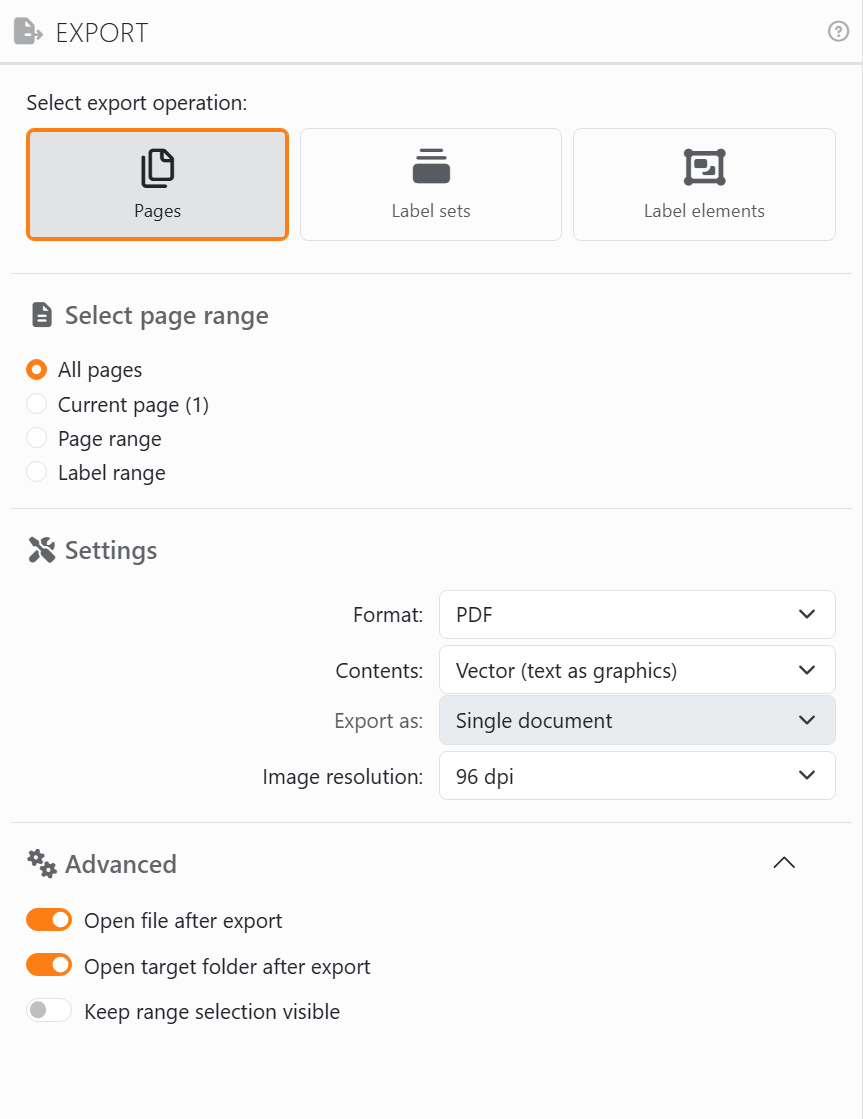
| Select export operation | |
| Pages | Whole sheets, as they'd print, page elements included. |
| Label sets | The labels of one label set, each on its own: one page of a PDF, or one picture, per label. Pick the set under Select label set. A label set whose labels are all the same exports a single one. |
| Label elements | One element on its own, the size of its frame: pick it under Select element. The list has the label elements, with their label set's name in front when there's more than one, then the page elements. An element that changes from label to label - a counter, a field - exports one file, or page, per label. |
For label sets and elements, a preview under the list shows what you've picked. Each of the three remembers its own format, resolution and so on, so switching between them doesn't lose what you set.
| Select page range - for Pages | |
| All pages, Current page, Page range, Label range | The same choices as in the Print panel, and Label placement works as described in Print start position. |
| Auto-advance after export | After each export, the range moves on to the next pages or labels of the same length, and back to the start after the end. |
| Settings | |
| Format | PDF or a picture format. See File formats. |
| Contents | For a PDF: what goes inside it. See Vector output modes. |
| Export as | For a PDF of more than one page or label: Single document, one PDF with them all, or Multiple documents, one PDF each. Pictures are always one file each. |
| Image resolution | How sharp the pictures are, from 72 to 600 dpi: the whole file for a picture format, and the pictures inside a PDF. More dpi, bigger files. |
| File naming | Shows up when every label gets a file of its own and the labels come from a data source. Leave it on Save as to number the files, or pick a field to name each file after its value. |
| Advanced | |
| Open file after export | Opens the file when it's done - the first one, if there are several. On to begin with. |
| Open target folder after export | Opens the folder, with the file selected. On to begin with. |
| Keep range selection visible | Keeps the outline of what you're exporting in the work area when you close this panel. |
Export now, at the bottom, says what it's about to export - Pages - PDF, say - and asks where to save it. Several files take the name you give followed by a number: Labels_01.png, Labels_02.png and so on.
Choose a file that's already there and Windows asks whether to replace it: say yes and it's replaced. Labeljoy never replaces a file on its own, though - when one of the numbered files, or a file named after a field, is already there, the new one gets (1), (2) added to its name.
A long export shows its progress with a Cancel button. Cancel a single PDF and nothing is kept; cancel an export of several files and the ones already saved stay where they are.




























