
In Your first label every label said the same thing. Now let's give each one a different product, from a spreadsheet: twelve products, twelve labels, each with its own name, price and barcode.
You need a spreadsheet with a row for each product and the titles of the columns in the first row - here they're Code, Description, Price and Quantity. You don't need Excel: Labeljoy reads the file itself. A CSV file works just as well; see Text and CSV files.
Start from the label you made in Your first label, or from a new document with the labels you use.
1. Connect the spreadsheet. Click Data source in the toolbar. The Data source panel says No data source available: click Connect data source. The Data connection wizard takes it from there:
- Click Excel, then Next.
- Pick your workbook with the folder button next to File name. Leave First row contains field names on: the titles of the columns become the names of the fields. Click Next.
- Pick the worksheet, if Labeljoy asks, and click Next.
- In Options, leave Quantity field on (One label per row). Click Next.
- Data review shows your rows as the labels will get them. Click OK.
The document now has one label for each row - twelve here. That's why Number of labels, in the Label set panel, is dimmed from now on: the number comes from your data.
Want more than one label of some products? In Options, pick a column for Quantity field - Quantity here - and each row makes as many labels as it says. Quicker still: drag the spreadsheet from its folder and drop it on a label. The wizard opens with the file already filled in.
2. Put the fields in the text. Click the text on a label. In the editor, select the whole text, open the Fields menu and pick Description. Type a space, a dash and a space, then pick Price from Fields too.
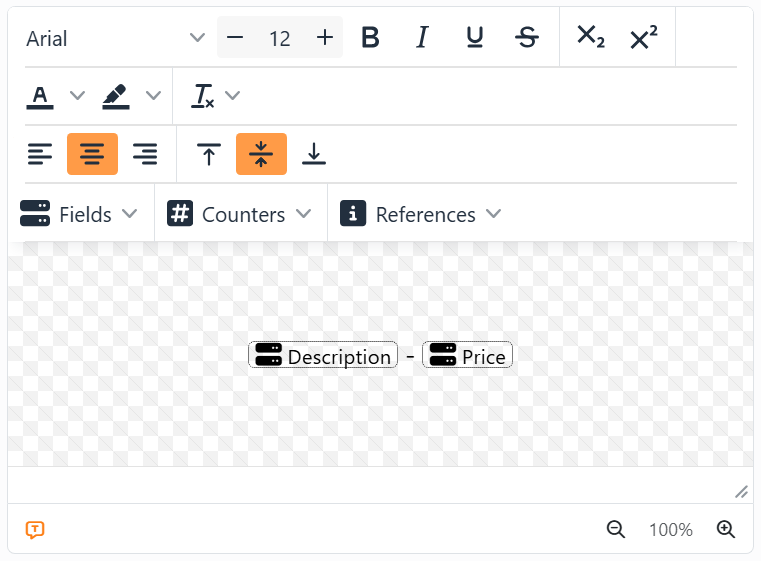
The fields show in the editor as placeholders: small boxes with the name of the field. On the work area, each label shows its own row: Ceramic mug on the first, Glass jar 500 ml on the second, and so on.
3. Write the prices properly. A price of 8.90 shows as 8.9, because a number in a spreadsheet doesn't keep the zeros at the end. When you picked Price, its settings opened - if you've closed them, click the Price placeholder to open them again. Click the arrow next to Format and pick Decimal number: the box shows #,##0.00, and the label shows 8.90. Then click Close.
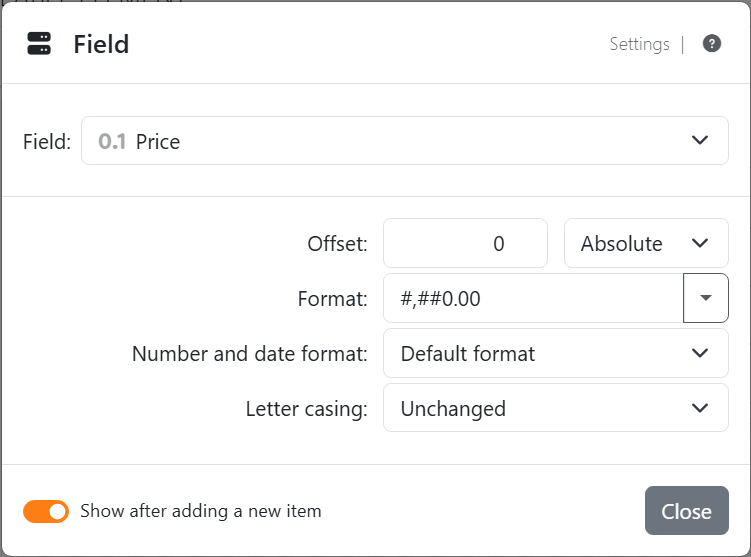
For a price with its currency, pick one under Currency formats instead. There's more on the settings in Fields and Number and date formats.
4. Put the code in the barcode. Click the barcode. In Text to encode, select LJ-1001 and pick Code from the Fields menu above it. Now every label has its own product, price and barcode:
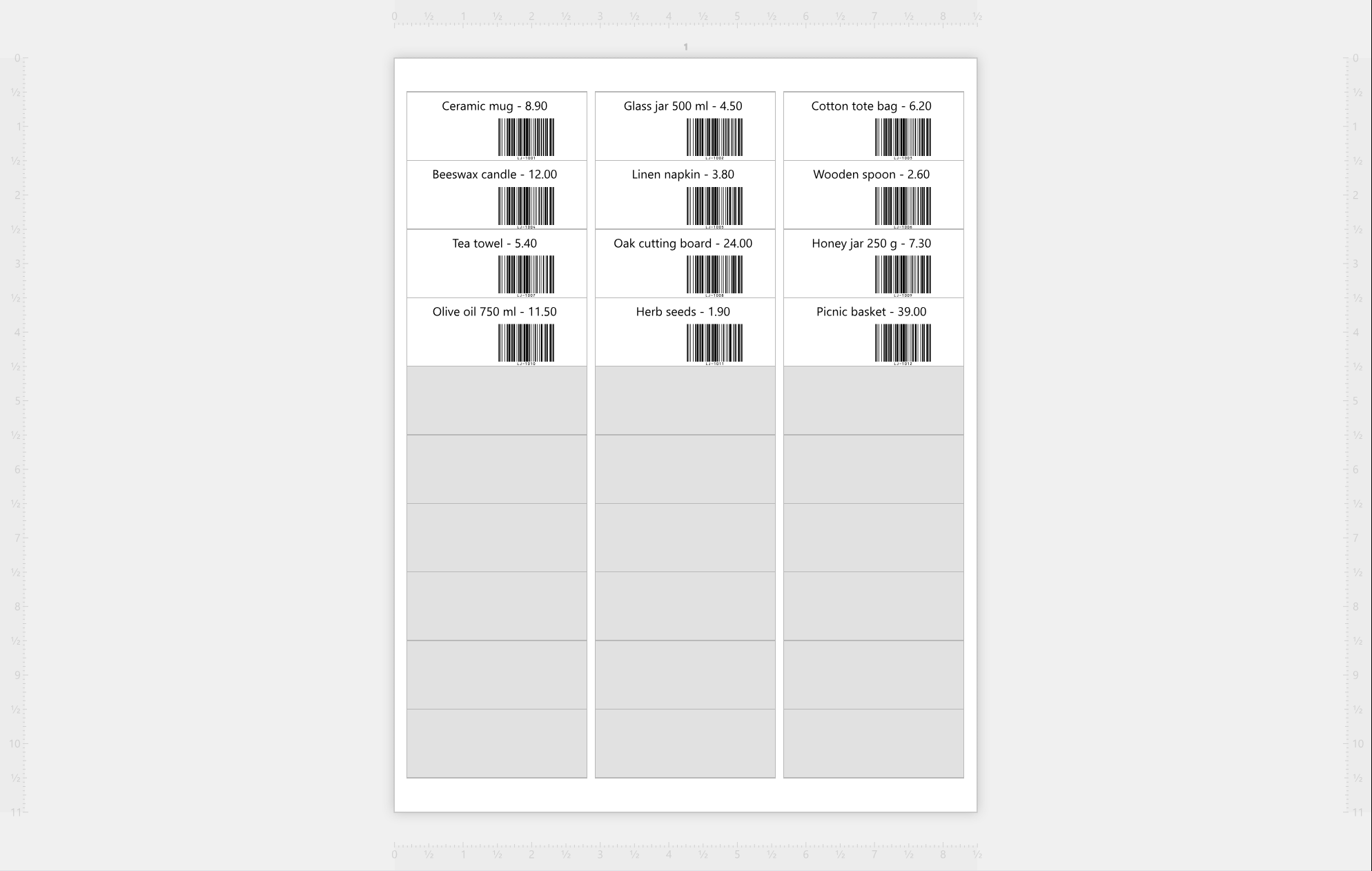
5. Print. Just as in Your first label: Print in the toolbar, then Print now. Labeljoy prints one label for each row, on as many sheets as it takes.
Only need some of them? Print a Label range from the Print panel, or filter your data. If the spreadsheet changes, Update data, in the Data source panel, reads it again - see Updating and removing a data source.
| Where to go next | |
| Data | All the kinds of data Labeljoy reads: spreadsheets, text files, databases and more. |
| Variable content | Fields, and also counters and references: numbers that go up, dates, page numbers. |
| The Data source panel | Dragging fields onto a label, and keeping your data up to date. |




























