
LabeljoyNew version
Every element has a shape, and so do the labels. It's a rectangle to start with, but it can be a circle, a star, a heart, a speech bubble and more. The background fills it, the border follows it, and it can cut off whatever is inside.
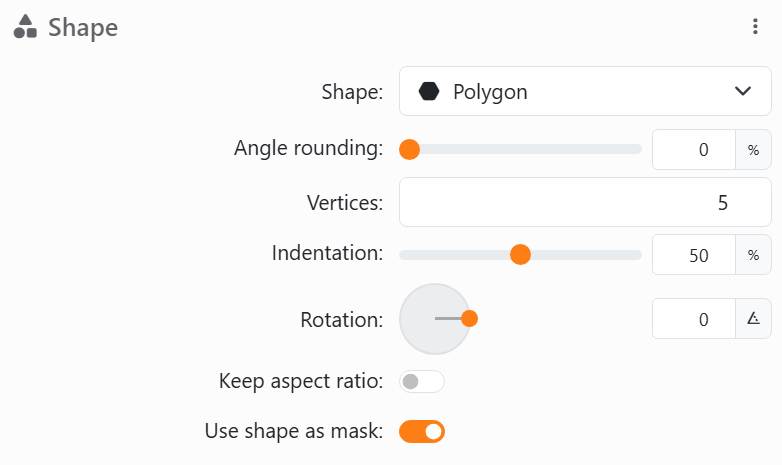
| The shape control | |
| Shape | 26 of them: Rectangle, Elliptical (an oval, or a circle in a square box), Polygon, the snipped corners, Trapezoid, Partial Circle, Chord, Teardrop, Plaque, Cloud, the flow-chart shapes (Document, Tape, Input, Data, Storage and the rest), Double Wave, the two speech bubbles, Heart and Arrow. |
| Angle rounding | Rounds the corners, from 0% (sharp) to 100%. Double-click the slider for 0%. Elliptical and Cloud have none. |
| Flip | Horizontally, Vertically or Both - a speech bubble's tail on the other side, say. Not for Rectangle, Elliptical, Polygon, Plaque and Arrow, which a flip wouldn't change or which turning does as well. |
| Use shape as mask | On (as it starts), what's in the element is cut off at the shape: a picture in a circle comes out round. Off, it's cut off at the element's box. |
| For a Polygon | |
| Vertices | How many corners, from 3 to 32. |
| Indentation | Pulls every other point toward the center, from 0% to 100%: that makes a star. Double-click the slider for 0%. |
| Rotation | Turns the polygon inside the box, on a dial - the element itself stays put. |
| Keep aspect ratio | Off, the polygon is stretched to fill the box. On, it keeps its proportions and sits in the middle. |
Where it is. An element's Shape is in its Properties. The labels' shape is in the Layout panel, under Shape, and has no mask: it's the outline of each label, which the label's background and border follow.
The ⋮ menu next to Shape has Copy shape, Paste and Reset to defaults, which makes it a rectangle again.
See also




























