
The Image section puts a picture in an element: a logo, a photo, an icon - or a different picture on every label, from your data.
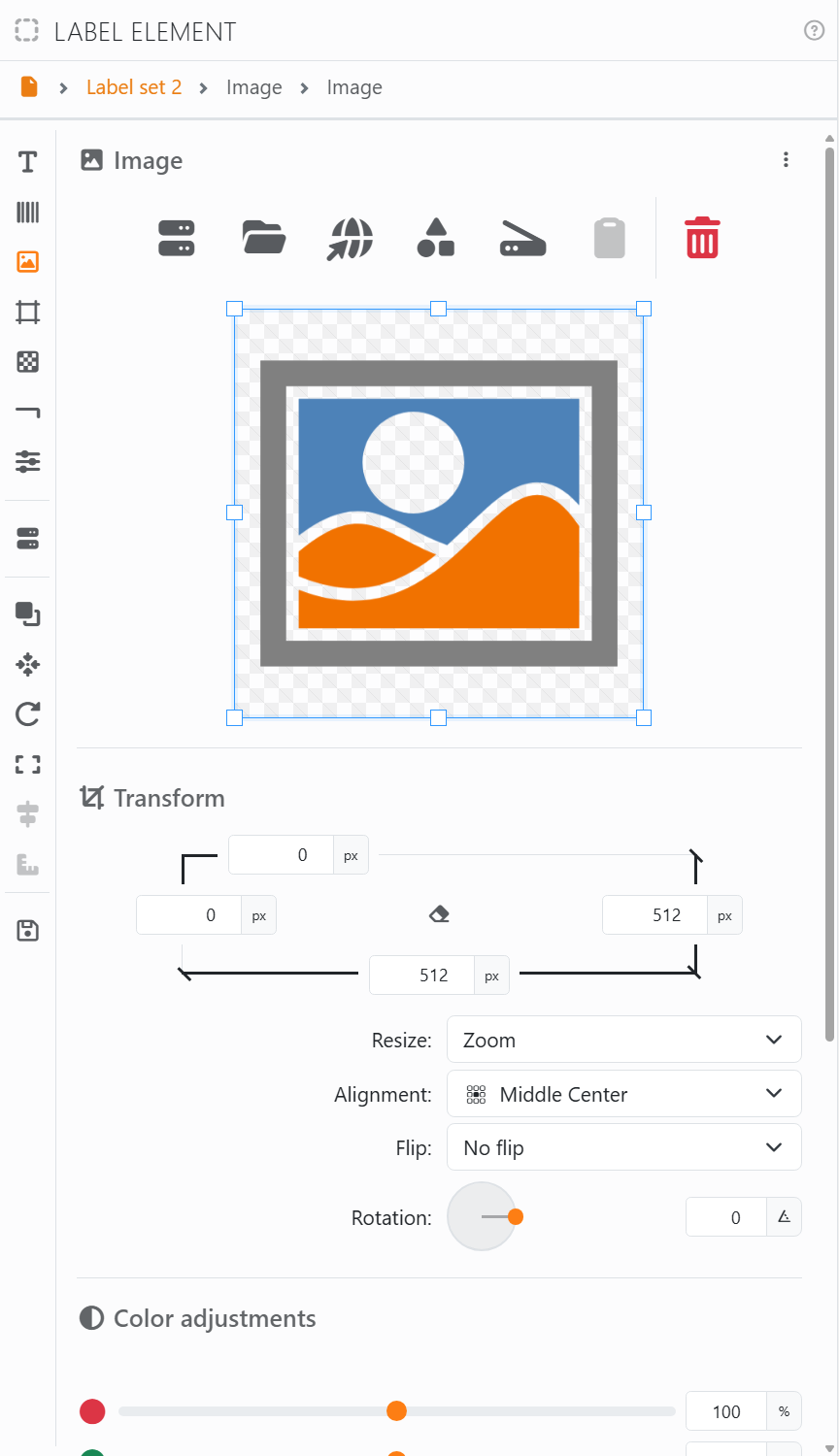
| Where the picture comes from | |
| Field | A column of your data: each label shows its own picture. See below. |
| File | A picture on your computer: JPEG, PNG, WEBP, GIF, TIFF or BMP. See Choosing an image. |
| Url | A picture on the internet: paste its address. |
| Clipart | One of the cliparts. |
| Scanner | Scan it, with your scanner's own window. |
| Get from clipboard | A picture you've copied in another program. Dimmed when there isn't one. |
| Delete | Takes the picture away. |
The picture is kept inside the document, so it's there even if you move or delete the file it came from. The name under the buttons says where it came from.
Transform. Drag a frame on the preview to crop the picture - to use just part of it - or type the edges in pixels. The eraser, or a double-click on the preview, puts the whole picture back.
| Fitting the picture in the element | |
| Resize | Zoom: the whole picture, as big as the element allows, in proportion. Fit: fills the element in proportion, and trims what spills over. Stretch: fills the element, out of proportion if need be. No resizing: the picture's own size. |
| Alignment | Where the picture sits when it doesn't fill the element: Top Left to Bottom Right. |
| Flip | Mirrors the picture: Horizontally, Vertically or Both. |
| Rotation | Turns the picture inside the element. To turn the whole element, see Rotation. |
| Color adjustments | |
| Red, Green, Blue, Brightness, Contrast | From 0 to 200%; 100% leaves the picture as it is. |
| Opacity | From 0, invisible, to 100%, solid: lower it to use a picture as a faint background. |
| Grayscale | From 0 to 100%: takes the color out, a little or all of it. |
Double-click a slider to put it back where it started. Padding, at the bottom, keeps the picture away from the edges of the element.
A picture from your data. With Field, the column can hold the path of a picture file on your computer, the address of a picture on the internet, or the picture itself, as a database can store it. Each label then shows its own. On screen, the preview and the crop tool aren't available for it. A path that isn't complete, such as a file name alone, is looked for in the document's own folder first - so keep the pictures beside the document and the column needs only their names.




























