
The tools panel is the column on the left of the window. It shows one panel at a time, with the panel's name in the bar at the top. What it shows depends on what you're doing: the toolbar opens a panel, and so does clicking the label. The ? at the right end of the bar opens that panel's page in this guide.
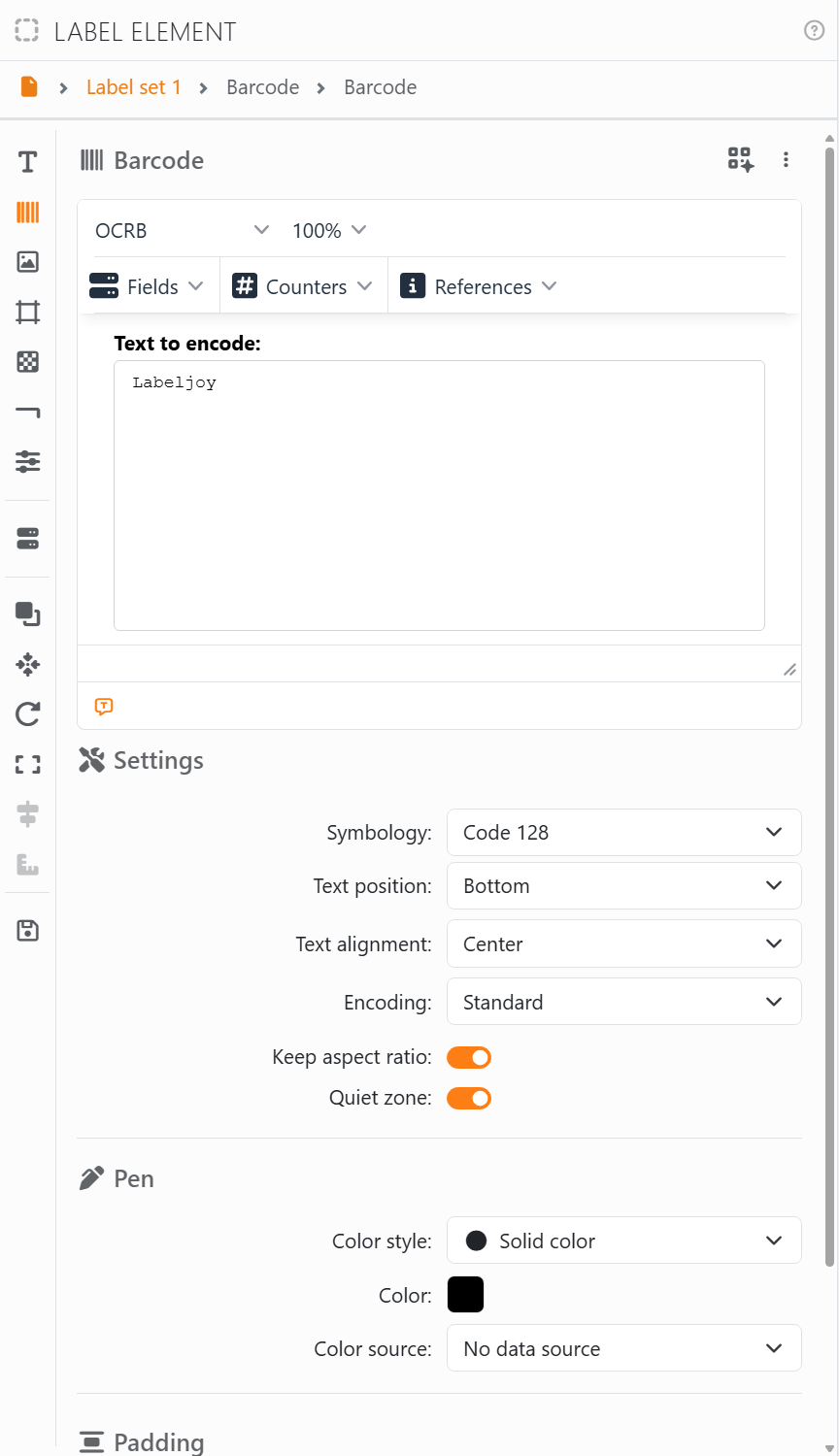
Click the label and you get the panel for whatever you clicked:
| What you click, and the panel you get | |
| An element on a label | Label element. |
| An element on the page | Page element. |
| A label, away from its elements | Label set. If the Data source panel is on screen, it stays. |
| The page, or the empty area around it | Document. |
When no document is open, you get Open if there are documents you opened recently, and New if there aren't. On a protected document, you always get the Document panel instead of the Label set, Label element, Page element and Layout panels.
| The panels, and how to open them | |
| New, Open, Save, Print, Export | Their buttons in the toolbar. |
| Layout | The Layout button, or Edit layout when you right-click the page. |
| Label element, Page element, Label set, Document | Click the label, as above. |
| Data source | The Data source button, or the same icon in the section strip of an element or a label set. |
| Element library | The Add element button, or Add element when you right-click a label. |
| Settings | The Settings button. |
| Help | The Help button: see The Help panel. |
The section strip. The panels of an element, a label set and the document have a strip of icons down their left side. Every element has seven sections, whatever kind of element it is: Text, Barcode, Image, Grid, Pattern, Line and Properties. Click an icon to open that section; the path at the top of the panel tells you which one is open.
| Further down the strip | |
| Data source | Opens the Data source panel. |
| Arrange, Move to, Rotate, Fit | Lists of commands for the selected elements. |
| Align, Same size | For when two or more elements are selected. |
| Save in element library | Keeps the element in the library, so you can use it again. |
The first time you select an element, its panel opens on the first section that has something in it, or on Properties if none does. After that, Labeljoy remembers which section you last used for that element.
Resizing the tools panel. Drag the handle on its right edge. Double-click the handle to go back to the standard width. Labeljoy remembers the width for next time, and always leaves room for the label.




























