
LabeljoyNew version
Wherever Labeljoy asks for an angle, it gives you a round dial and a box with the degrees. Turning an element uses it, and so do a few settings that turn something inside one.
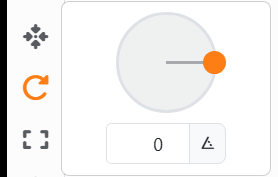
| The dial | |
| Click or drag | Points the needle there. It snaps to steps of 15°; hold Ctrl for single degrees. |
| Double-click | Back to 0°. |
| The box | Type the angle, 0 to 359, or use its arrows, which step by 5. Going past 359 comes round to 0. |
To turn an element, use Rotate on the side strip of the Label element panel, the Page element panel or the Document panel. The angle goes to every selected element, each turning round its own center. On the work area, drag the round handle above a selected element - see Moving, resizing and rotating.
| The same dial elsewhere | |
| Image | Rotation turns the picture inside its element - see Image. |
| Shape | Rotation turns the outline inside the element's box - see Shapes. |
| Line | Rotation of a Line. |
| Text | Start angle, where a text written round a circle starts - see Text. |
| Colors and shadows | Fade angle of a fade, and Angle of a shadow: the direction it falls. |
A rotated element's Position is the upright box it fits in, so its numbers change as it turns.




























