
To use up a sheet you've already printed part of, tell Labeljoy where the first free label is: the next print starts there instead of at the top.
| Start position, in the Layout panel | |
| Start column, Start row | The first label to print on, on the first sheet. Every sheet after the first starts at the top as usual. A box is dimmed when the layout has only one column, or one row. |
| Update after print/export | Labeljoy moves the start position on by itself after every print or export: to the label after the last one it printed, or back to the top when the last sheet it printed was full. Leave it on and you use up every sheet without counting. |
You'll find these at the bottom of the Layout panel. Which label counts as "the next one" follows the layout's Rendering order: across and then down, or down and then across.
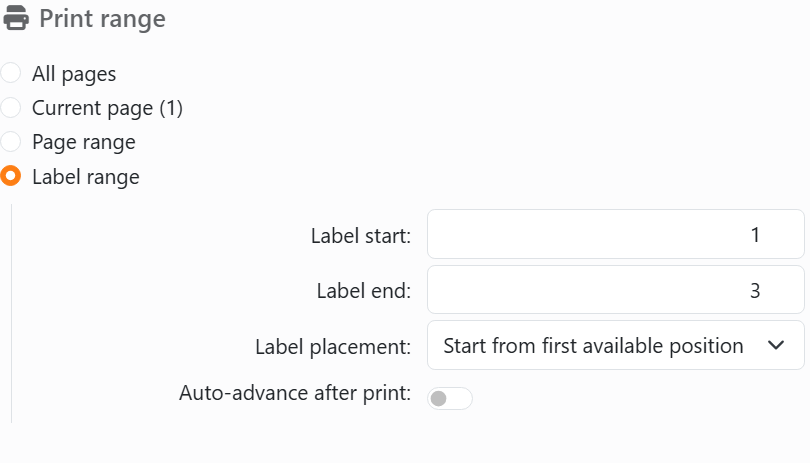
Printing only some labels. With a Label range, in the Print panel or the Export panel, Label placement says where the chosen labels land on the paper:
| Label placement | |
| Start from first available position | The labels are laid out one after the other from the start position, as if they were the whole document. It's the one for reprinting a few labels on a sheet you've already started. |
| Keep original start position | Each label goes where it would be in the whole document, and the other spots stay empty. |
| Print full pages | The whole pages the labels are on, the labels around them included. In the Export panel it's called Export full pages. |
With one label per page there's nothing to place, so Label placement is dimmed and every label gets its own page.
Asking Joy, the AI assistant, to print? You can tell it where to start - "start on row 3" - and it uses that for that print only. From the command line, /fp sets the start position for one run, and /up switches Update after print/export on or off for it.
See also




























