
The Layout panel sets the paper and the labels on it. Open it with Layout in the toolbar, with Edit layout when you right-click the page, or with the grid at the top of the Document panel. It isn't available on a document protected against editing.
| The icons on the left | |
| Layout library | Pick your labels by brand and model. See The layout library. |
| Custom layout | Set the layout up yourself, as described below. |
| Layout wizard | Set it up one step at a time: see The Layout wizard, below. |
| More... | Copy layout and Paste layout copy the whole layout from one document to another. Reset layout goes back to Labeljoy's default: 3 columns and 8 rows, no margins or gaps, on Letter paper in inches and on A4 in centimeters. |
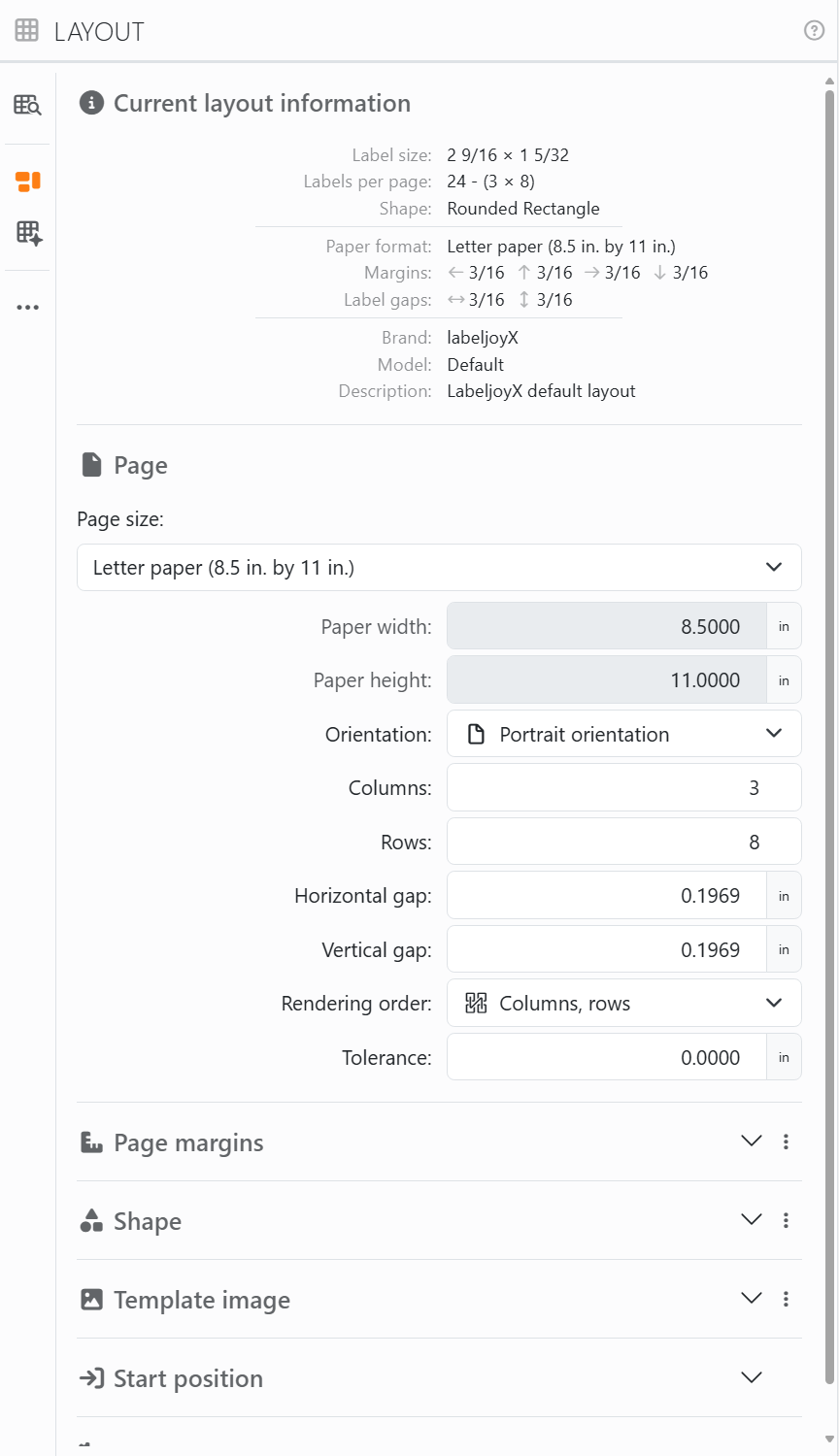
Current layout information, at the top, sums up the layout: the size of one label, how many there are per page, their shape, the paper, the margins and the gaps. It changes as you do.
| Page | |
| Page size | The paper. Pick a standard size, or Custom paper size to type in a Paper width and Paper height of your own. |
| Orientation | Portrait orientation or Landscape orientation. Turning the paper turns the grid of labels with it. |
| Columns, Rows | How many labels across and down, up to 99 each. |
| Horizontal gap, Vertical gap | The space between two labels, across and down. |
| Rendering order | The order the labels are filled in. Columns, rows fills the first row from left to right, then the next row. Rows, columns fills the first column from top to bottom, then the next column. It matters when a document has fewer labels than a sheet holds, and for which label gets which row of your data. |
| Tolerance | Lets what's on a label run past its edges by this much, all round. Leave it at 0 unless a background or a picture has to reach right to the edge of the label, with no white line where your printer is slightly off. |
There's no box for the size of a label: Labeljoy works it out from the paper, the margins, the gaps and the number of columns and rows. Change any of them and the labels change size to fit. All the measurements are in the units you picked in Settings.
| The other sections | |
| Page margins | The space from each edge of the paper to the labels: top, left, right and bottom. The link between them, All the same, sets all four at once. They work like padding. |
| Shape | The shape of the labels - Rectangle, Elliptical for round labels, Polygon, a heart, and plenty more - and its Angle rounding, for rounded corners. |
| Template image | A picture behind the labels to design on, such as a scan of a form you have to fill in. It's only there on screen, to help you: it isn't printed. You pick it as described in Choosing an image. |
| Start position | Start column and Start row say which label of the first sheet to start from, so you can use up a sheet that's partly used. Switch on Update after print/export and Labeljoy moves them on by itself, to the label after the last one printed. |
| Advanced | A Brand, a Model and a Description for the layout, and Save in library, which adds it to the layout library so you can use it again. |
The ⋮ at the right of the Page margins, Shape and Template image sections copies their settings, pastes them into another document, or resets them.
The Layout wizard sets up a layout in five steps, with a preview that shows what you're changing:
- Define paper size: the paper and its orientation.
- Define rows and columns.
- Define label size: the width and height of one label, from your ruler or the box of labels.
- Define paper margins and label gaps: Labeljoy fills them in from the label size, spreading the space that's left evenly. Change one and it works out the rest again.
- Define label shape and layout properties: the shape, and a brand, a model and a description if you want them.
Click OK and the layout is applied to your document, and the panel shows it on
Custom layout for any last changes.  Help, at the top right of the wizard, opens this page.
Every change you make to the layout can be undone, including Paste layout and Reset layout.




























