
The Label element panel is where you set up an element on a label. It opens when you click the element in the work area, and it shows one section at a time.
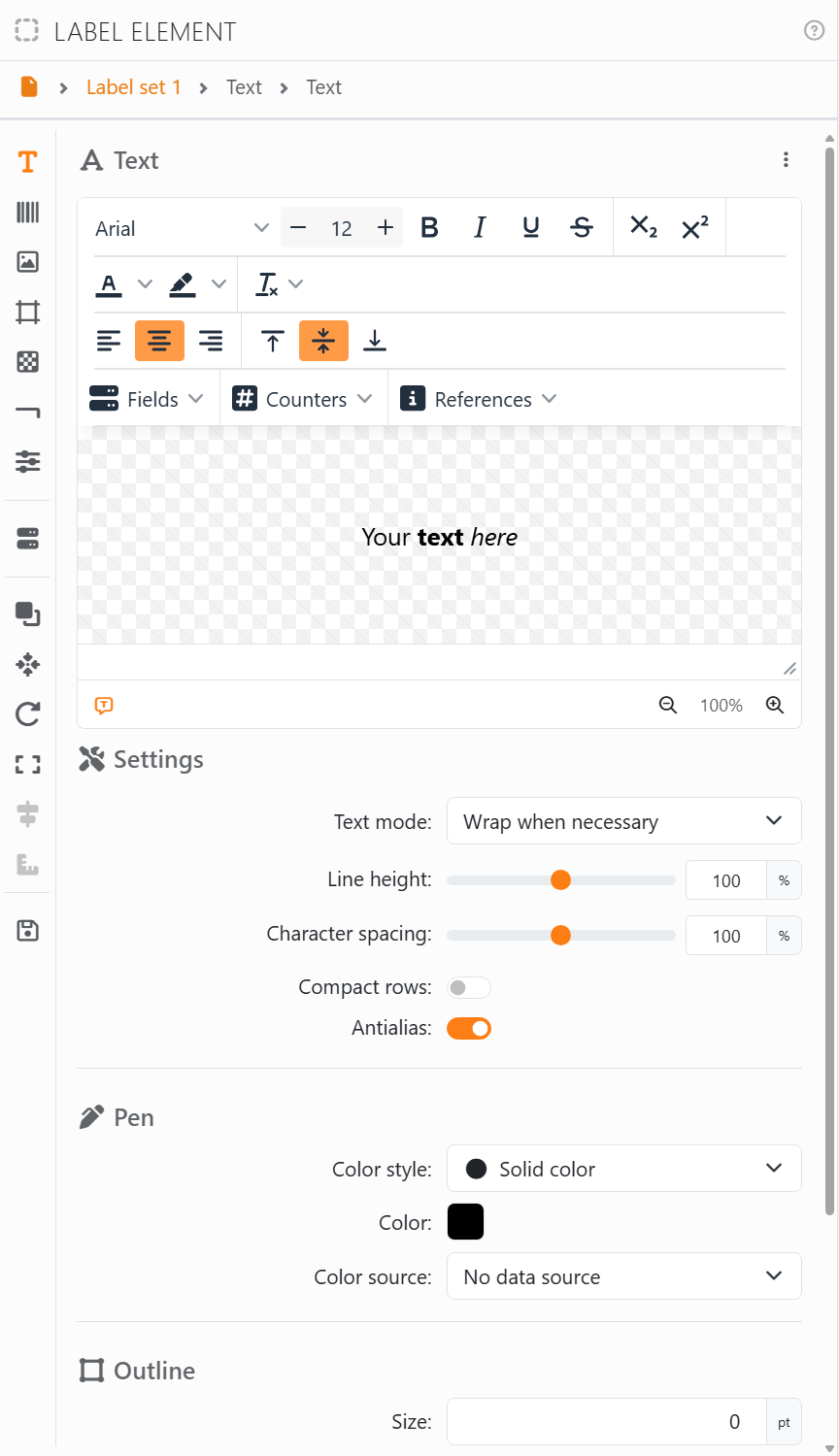
The path at the top shows where you are: the document, the label set - click it to go to the Label set panel - the element's name, and the section. With several elements selected, it reads [Multiple elements], and what you change applies to all of them.
| The strip on the left | |
| Text, Barcode, Image, Grid, Pattern, Line | The element's contents, one section each: Text, Barcode, Image, Grid, Pattern, Line. |
| Properties | What the element is as a whole: see Properties. |
| Data source | Opens the Data source panel, to connect the label set to your data. |
| Arrange, Move to, Rotate, Fit, Align, Same size | Line up and arrange the selected elements: see Moving, resizing and rotating and Draw order. |
| Save in element library | Keeps the element in the element library, so you can use it again. |
Adding and taking away contents. Every section is always there - there's nothing to switch on. Fill a section in and the element has that content: type a text, choose a picture, give the grid or the line a size. To take a content away, use Reset all in its section's ⋮ menu, or the bin next to it in the Document panel. When you select an element, the panel opens on the section you used last for it, or on its first content.
The ⋮ menu at the right of each section's title copies that section, or part of it, and pastes it into another element:
| In a section's menu | |
| Copy all, and the other Copy items | Copy the whole section, or a part of it - the text only, the settings, the pen, the padding and so on. |
| Paste | Dimmed until you've copied something that fits here. It then says what it pastes, such as Paste settings. |
| Reset all | Puts the section back as a new element has it. For the Shape section it's called Reset to defaults. |
On a document protected against editing the panel is empty: there's nothing you can change.




























