
LabeljoyNew version
What you select is what the tools panel shows and what the toolbar's commands work on. A selected element has a frame, with handles to resize and turn it.
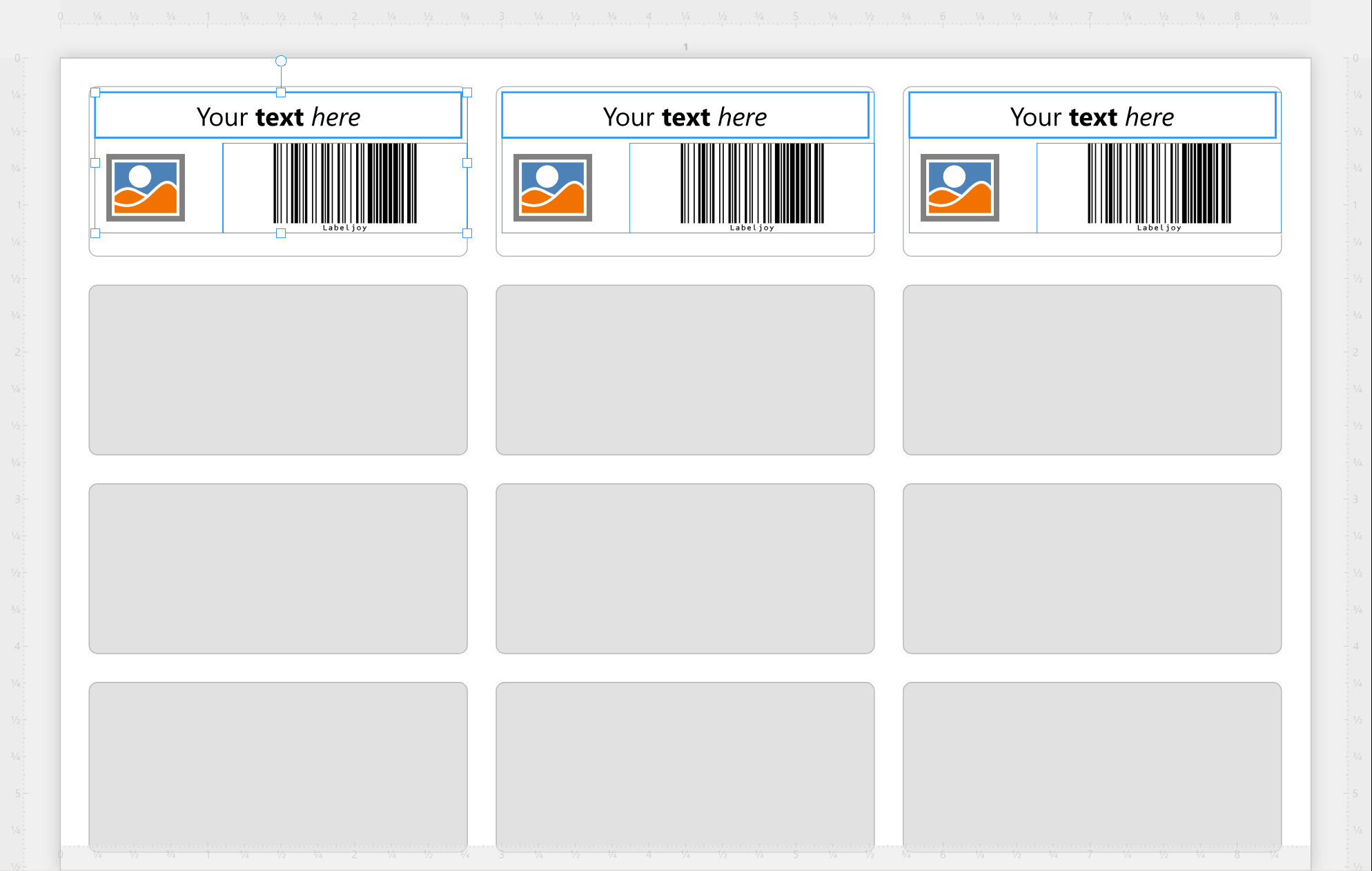
| Ways to select | |
| Click | Selects the element you click. Click a label away from its elements to select its label set; click outside the pages to select nothing. |
| Ctrl+click | Adds an element to the selection, or takes it out. |
| Drag across an empty spot | Selects every element the rectangle touches, in place of what was selected. |
| Ctrl+A | Selects all the elements the selection can take: see below. |
| Tab, Shift+Tab | The next or the previous thing: each label set, its elements, then the page elements. |
| The Document panel | Click an element's name in the Document panel to add it to the selection or take it out, as with Ctrl+click. |
What can be selected together. The elements of one label set, or page elements - never a mix, and never elements of two label sets:
- Ctrl+click an element of another label set, and the selection starts again there.
- Ctrl+click a page element, and the elements on the labels leave the selection.
- A rectangle that touches both keeps the kind it started on: the elements of a label, if you started on one, otherwise the page elements.
- Ctrl+A selects every element of the label set you're working on - or of the only label set, when nothing is selected - or every page element, if a page element is selected.
Working on several at once. The panel's path reads [Multiple elements], and what you change there applies to all of them. The values it shows are those of the reference: the element you selected last, with the thicker frame. Click another selected element, without Ctrl, to make it the reference - Align and Same size line the others up with it.
A double-click clears the selection. Locked elements can be selected too: the padlock only stops them moving.




























