
LabeljoyNew version
Position, in the Properties section of an element, says exactly where it is and how big - for when dragging on the work area isn't precise enough.
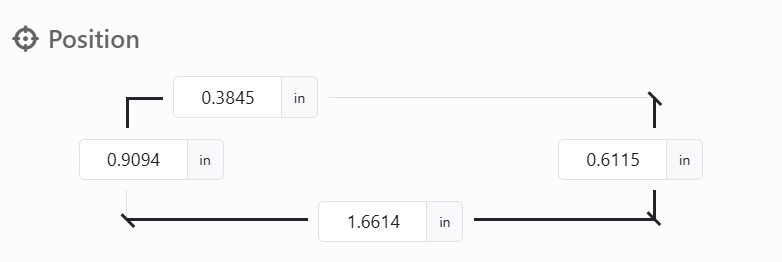
| The four boxes | |
| Left, Top | From the top left corner of the label - or of the page, for a page element. They can be negative, to let an element run off the edge. |
| Width, Height | How big it is. Rest the mouse on a box to see which is which. |
The boxes follow what you do on the work area as you drag, and what you type moves or resizes the element as soon as you leave the box. With several elements selected, it applies to all of them; the boxes show the one you selected last.
| A rotated element | |
| What the boxes measure | The smallest upright box the element fits in, turned as it is - the same one Align and Move to use. |
| Typing a width or a height | Stretches the side that's closer to across, or to down, until the box has that size. |
From the keyboard, Shift+arrow moves the selection and Ctrl+arrow resizes it - see Moving, resizing and rotating. Copy position, in the section's ⋮ menu, copies all of it - rotation too - to paste onto another element.




























