
LabeljoyNew version
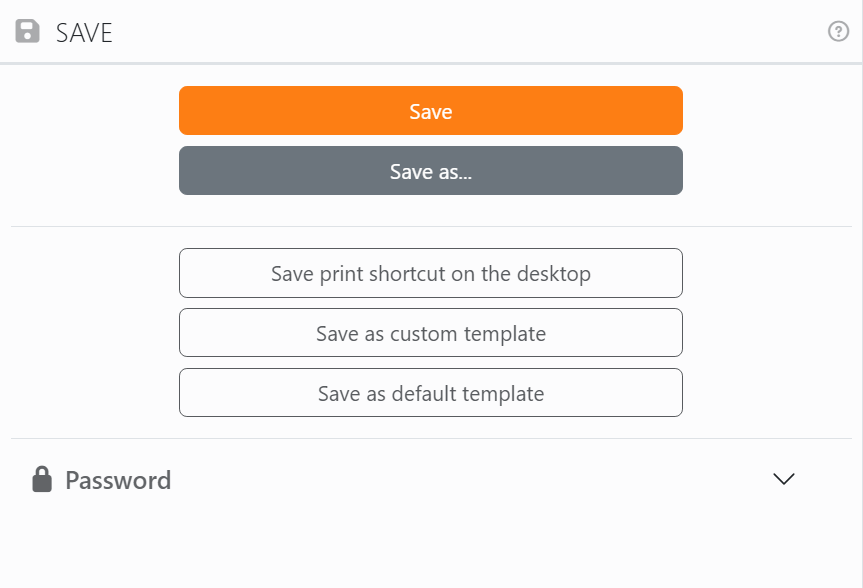
The Save panel is where you save the document on screen, make a template of it, or protect it with a password. Open it with the Save file button of the toolbar.
| Saving | |
| Save | Saves your changes to the document's file. It's dimmed when there's nothing new to save, and on a document that's never been saved: use Save as for that. |
| Save as... | Saves the document under a new name, or in another folder. You can save it as a Labeljoy file (.ljx) or as a JSON file, a text version of the same document. From then on, the document is the new file, and its tab shows the new name. |
You don't have to open this panel to save: Ctrl+S saves the document on screen, and the save icon on a document tab saves that document.
| More ways to save | |
| Save print shortcut on the desktop | Puts an icon called Print followed by the document's name on your desktop. Double-click it and the document is printed straight away, on the printer and with the settings saved in it, without opening Labeljoy's window. It's only available once the document has been saved. |
| Save as custom template | Labeljoy asks for a name, then adds the document to your templates in the New panel. If you already have a template with that name, it asks before replacing it. |
| Save as default template | Makes the document your default template: the one Your default template in the New panel and Ctrl+N start from. If you already have one, Labeljoy asks before replacing it. |
| Delete default template | Shows up when you have a default template. It deletes it, after asking, and new documents start from the factory default again. |
A template is a copy of the whole document, passwords included: a template made from a protected document makes protected documents.
Password. The last section of the panel protects the document: it can ask for a password before it opens, before it can be changed, or before it's printed or exported. See Protecting a document.
In a copy of Labeljoy that isn't activated, the number of times you can save is limited. See Demo, activation and Care+.




























