
Most of what you design goes on a label, and is repeated on every label of its label set. A page element goes on the page instead: it's there once per page, wherever you put it, and it can cross the edges of the labels. Use one for a heading, a logo, or a note on the sheet.
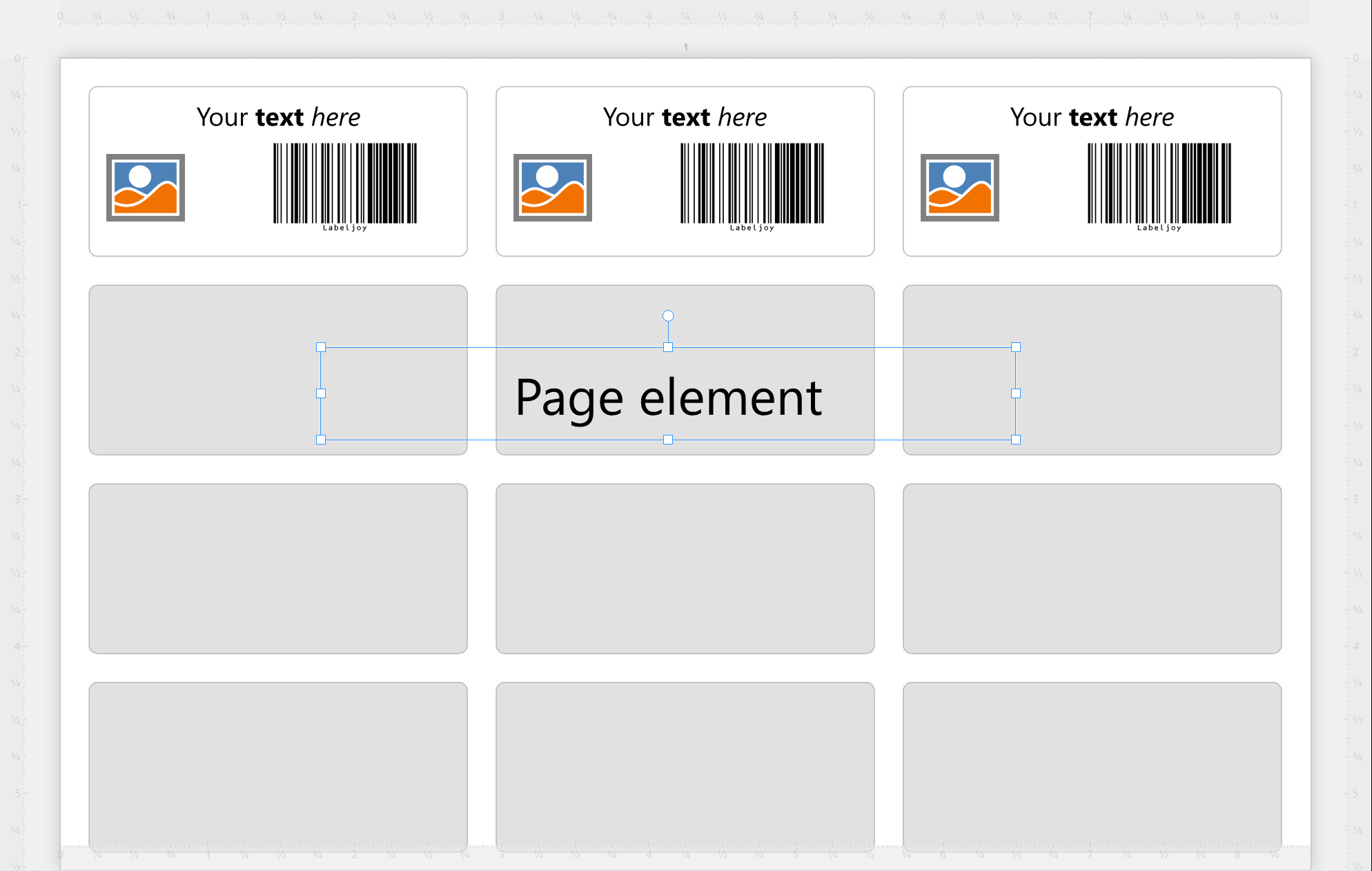
A page element can be anything an element on a label can be: a text, a barcode, a picture, a grid, a pattern or a line. You see page elements in page view only: in label view there's only the label.
To add a page element:
- Click Add element in the toolbar.
- In the element library, open the ⋮ menu and choose Insert new page element.
- Double-click an element to put it in the middle of the page, or drag it onto the page.
You can also drop a picture file onto the page, outside the labels: it becomes a page element with that picture.
Click a page element to select it and open the Page element panel. It's the same as the panel of an element on a label, with a few differences, because a page element isn't on a label:
- it can't show data from a data source, so Data source is dimmed and there are no fields to add;
- in its text and barcode, the automatic values about labels - such as the label number - aren't there, but the ones about the page are: the current page, the total pages, the first and last label on the page;
- its Advanced section, in Properties, has the options that say where and when it appears.

| Where and when it appears | |
| Show on | Which pages it's printed on: All pages, Even pages only, Odd pages only, First page only or Last page only. |
| Skip first page, Skip last page | Leaves it off the first or the last page, such as a "continued" note that shouldn't be on the last one. |
| Position | On top of labels draws it over the labels, Behind labels under them: a background for the whole sheet, for example. |
In the Document panel, the page elements drawn on top of the labels are listed before the label sets, and those behind them after.
An element stays what it is: you can't turn an element on a label into a page element, or the other way round. Copy and paste keeps it as it was, too.




























