
The New panel is where you start a new document. Open it with the first button of the toolbar. You can start from your own default template, from the factory default, from the layout of the document you're working on, or from a ready-made template.
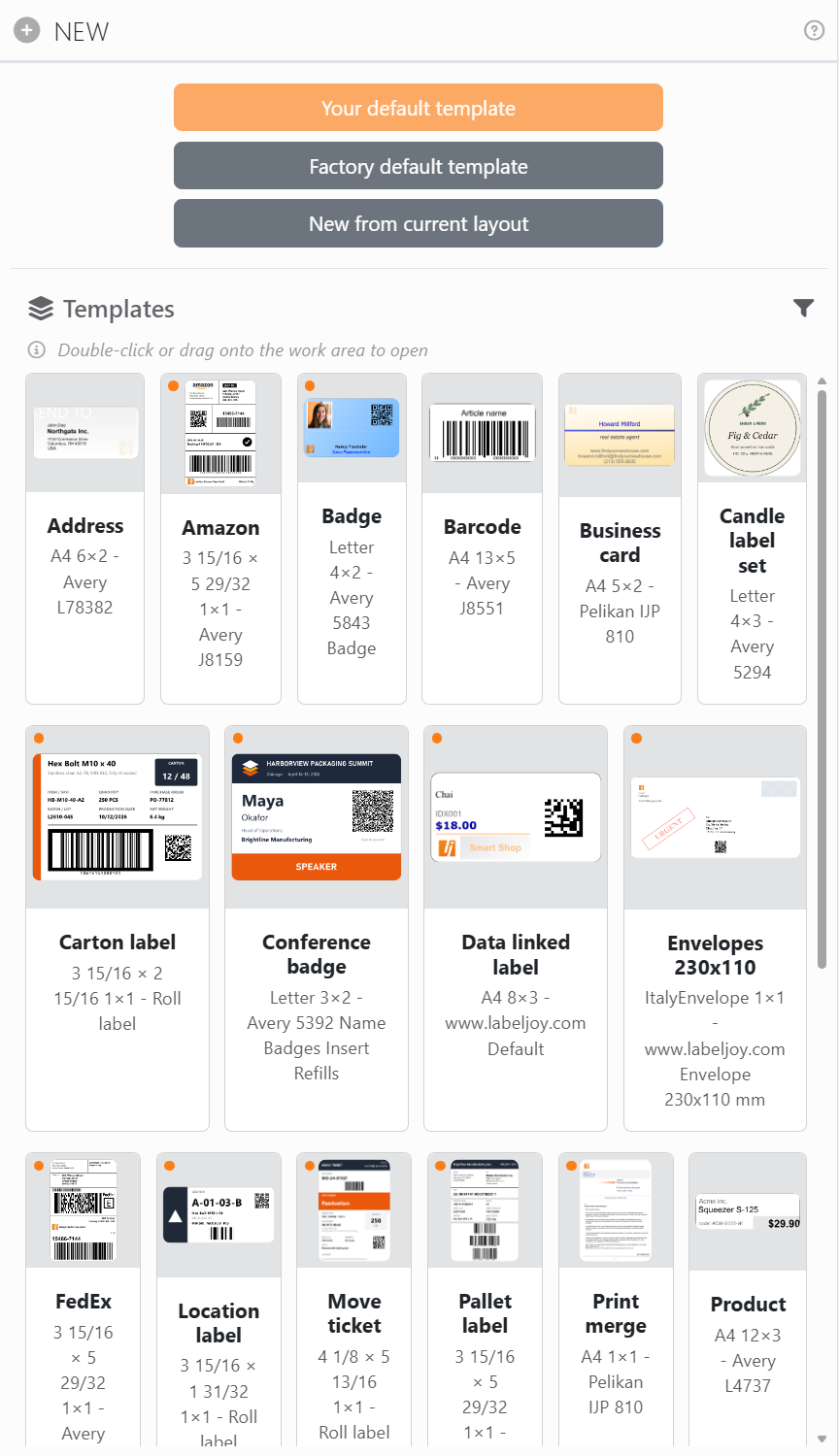
| Starting a document | |
| Your default template | A copy of the document you saved as your default template, from the Save panel. You can only use it once you've saved one. |
| Factory default template | A sheet of 24 labels, 3 across and 8 down; the first three hold a text, a picture and a barcode, ready for you to change. The paper is Letter or A4, depending on the unit of measure you picked in Settings. |
| New from current layout | A new document with the same paper and labels as the one on screen, and nothing else of it: you start again with the three sample elements. You need a document open for this one. |
A new document isn't saved anywhere yet: its tab reads New document until you save it.
Templates. Under the buttons you'll find the templates: the factory ones, made for common jobs such as addresses, badges, business cards, shipping labels, pallet and carton labels and price tags, and the ones you've saved yourself. Each card shows a preview, the paper and how many labels fit on it, and the brand and model of the labels it's made for, if any. An orange dot means the template is connected to example data.
| Using the templates | |
| Double-click a card | Starts a new document from that template. Its tab reads New document from and the template's name. |
| Drag a card onto the work area | Does the same. |
| The funnel | Shows all the templates, only the factory ones, or only yours. |
| × on a card | Shows up on your own templates when the mouse is over them. It deletes the template for good, after asking. Factory templates can't be deleted. |
A template connected to example data opens with that example data, so you can see how it works. Labeljoy reminds you to connect your own data source to it.
To save a document as a template of your own, or as your default template, use the Save panel.




























