
The Data connection wizard connects a label set to
your data, a few steps at a time: what kind of data it is, where it is, which part of it you want, and a look at the
records before you confirm. It opens with Connect data source in the
Data source panel, when you right-click a label with no data, from the
Fields menu of the text editor, and from the Create from data
source card of the home screen.  Help, at its top right, opens this
page.
Help, at its top right, opens this
page.
Or just drag a data file from a folder and drop it on a label: the wizard opens with the kind of data and the file already filled in.
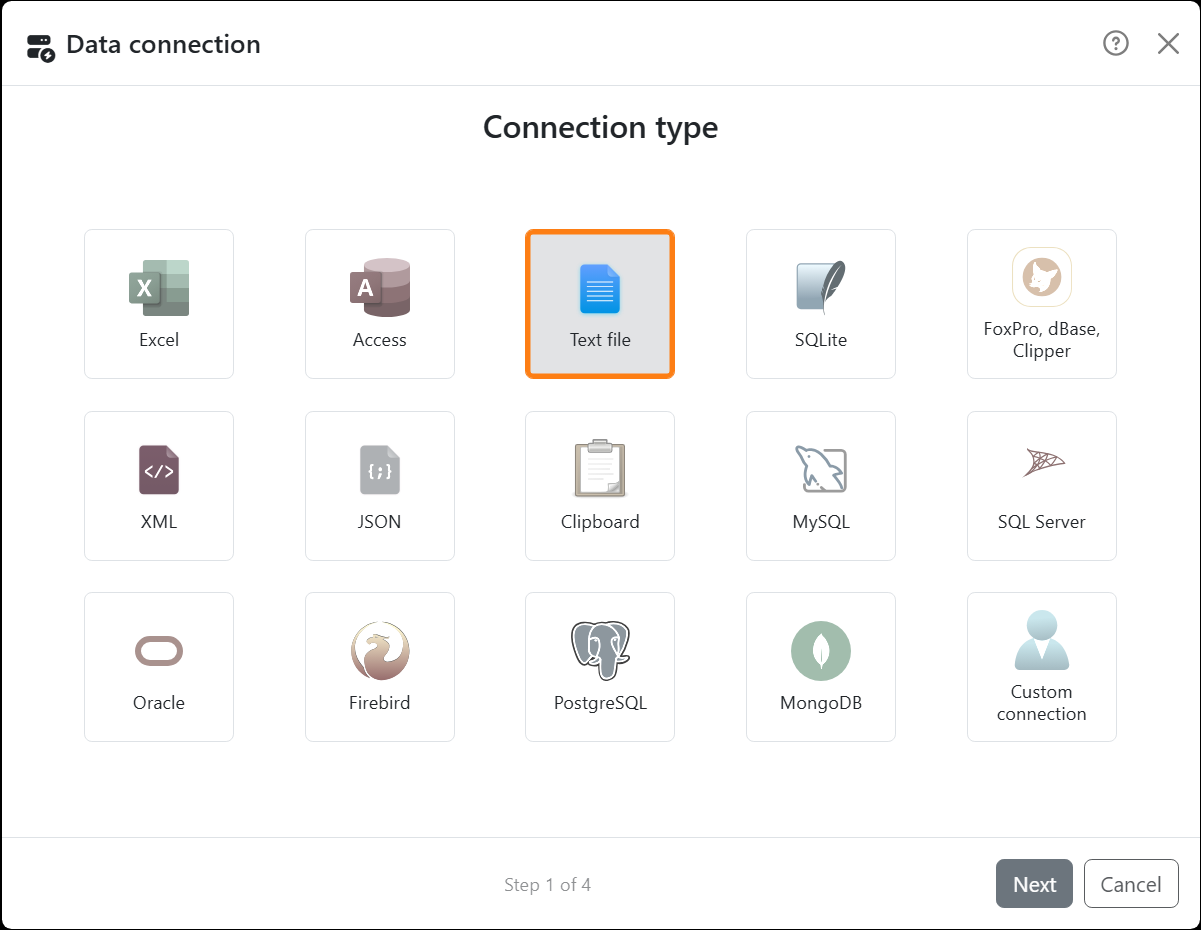
| The steps | |
| Connection type | Click the kind of data you have - or double-click it to go straight on. |
| Connection parameters | Where the data is: a file, a server, a connection string. |
| Data source | Which part of it: a worksheet, a table, a query. Skipped when there's only one, as for a text file. |
| Options | How many labels each row makes, and a couple of choices about empty rows. |
| Data review | The records, as the labels will get them. |
The bottom of the wizard says which step you're at, as in Step 2 of 5. Back goes back a step, Next checks what you've entered and goes on, OK on the last step connects the data. Cancel, the X or the Esc key close the wizard and change nothing. When something's wrong - a file that can't be read, a server that doesn't answer - the reason shows in red at the bottom.
| Connection type - which page tells you more | |
| Excel | Spreadsheets |
| Text file | Text and CSV files |
| Access, SQLite, FoxPro, dBase, Clipper | Database files |
| XML, JSON | XML and JSON files |
| Clipboard | The clipboard |
| MySQL, SQL Server, Oracle, Firebird, PostgreSQL, MongoDB | Professional database |
| Custom connection | Custom connection |
| Data source | |
| Source | The worksheets, tables or other parts of your data, in groups such as Tables and Views. Where it can be used, the last one is SQL query: pick it, and type what to read in the SQL query box. Each kind of data's page says what goes in it. |
| Show system objects | Lists the parts a database keeps for itself, too, in italics. Off, you only see your own. |
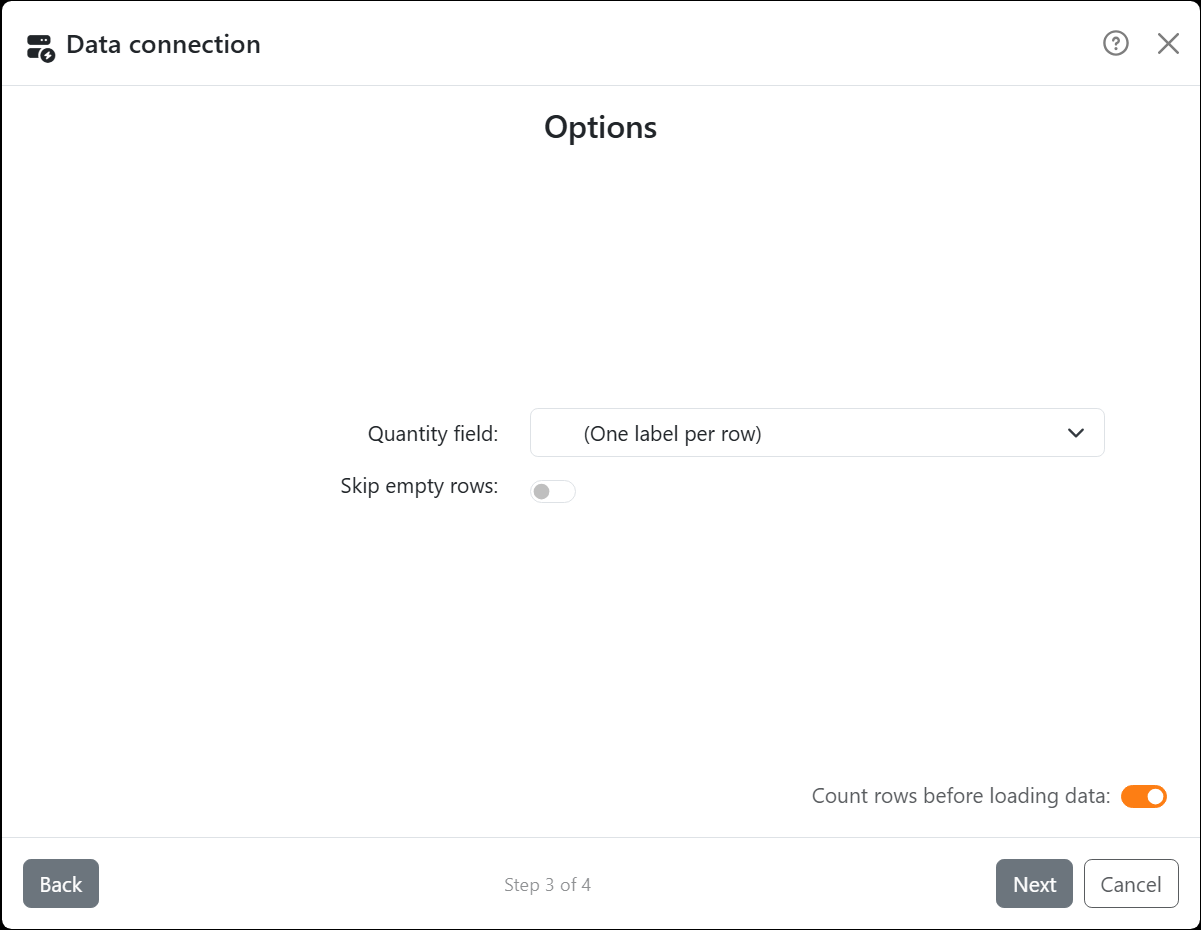
| Options | |
| Quantity field | (One label per row), or a field that says how many labels each row makes. A row whose value isn't a whole number above 0 makes one label, and no row makes more than 1000 - a bigger number counts as 1000. Only text and number fields are offered. |
| Skip empty rows | Leaves out the rows with nothing in them. |
| Count rows before loading data | Counts the rows first, so the progress bar knows how far it has to go. Loading a big file or a slow server? Switch it off. Labeljoy remembers your choice. |
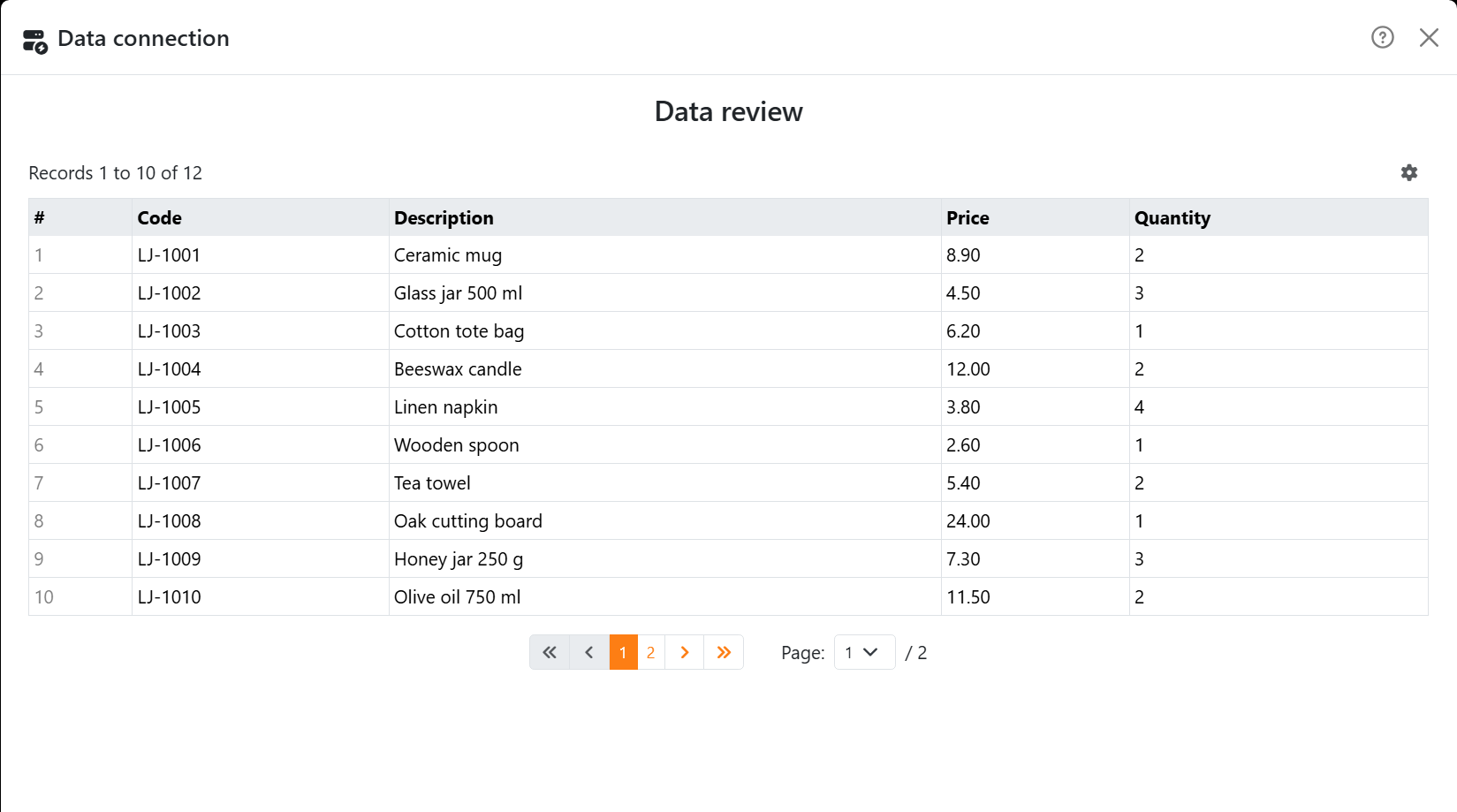
| Data review | |
| The table | The records, a page at a time. # is the record's place; hover a column's name to see what kind of values it holds. |
| The pages | First, Back, Next and Last, the page numbers, or pick one under Page. |
| The gear | Adapt cells to content widens the columns to fit instead of wrapping, and Records per page shows 10, 25, 50 or 100 at a time. |
Loading more than 10,000 rows? Labeljoy warns you, because it takes longer and makes the document bigger: the records are saved inside it. If you don't need them all, filter them, or connect a smaller part of your data.
Connecting a label set that already has data replaces it. The filter and sort are removed, and so is any field the new data doesn't have, from every label. You can undo it.




























