
LabeljoyNew version
The cliparts are more than 4,000 ready-made pictures in 34 categories - animals, arrows, flags, food, safety signs, road signs, price tags, social networks and many more - for you to put on your labels. Browse them by category, or search for one in your own language. Open them with the Clipart button in an element's Image section.
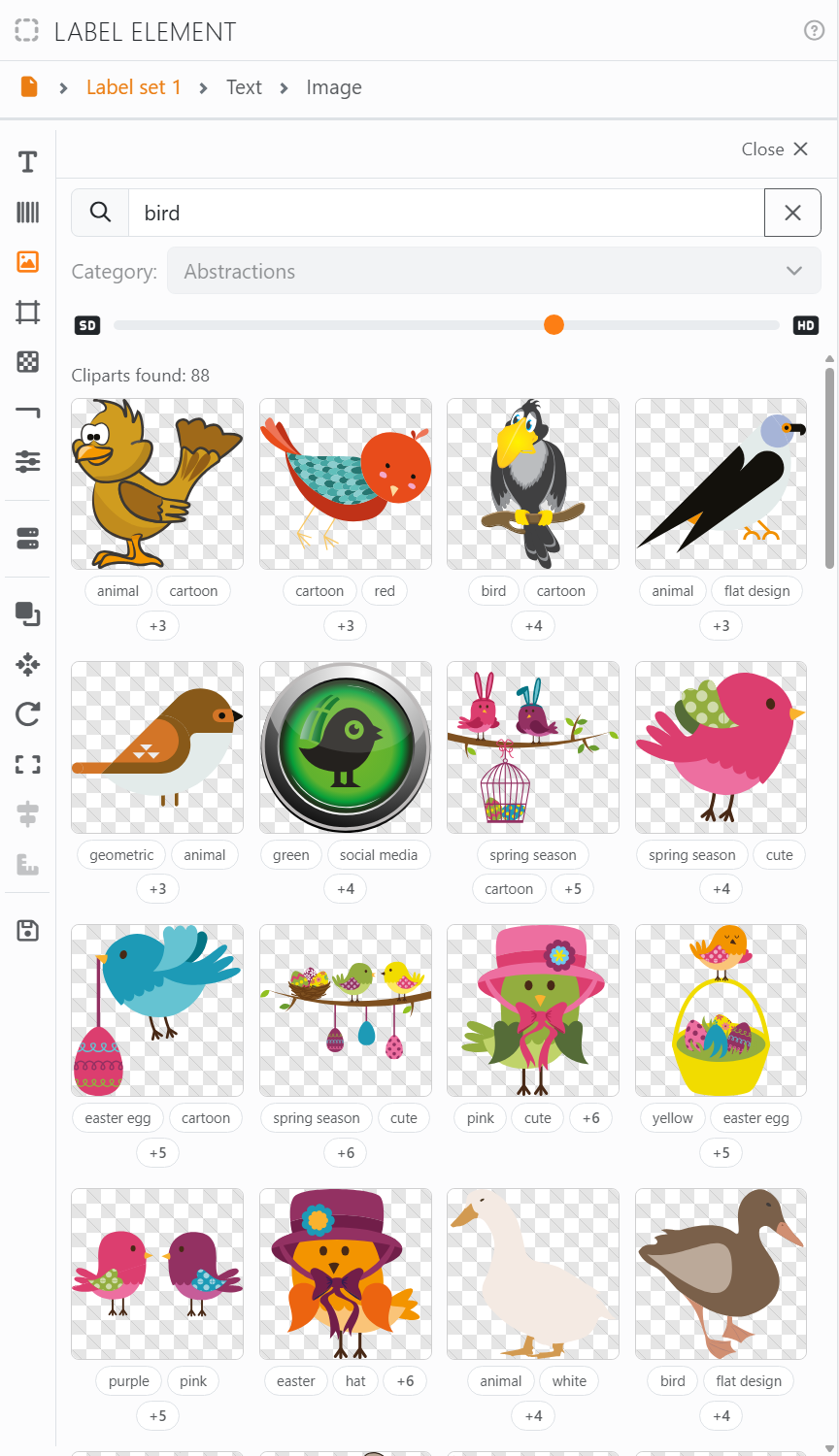
| In the panel | |
| Search | Finds cliparts in every category by what they show: type a word in your language or in English. Add more words to narrow it down - a clipart must match them all. A clipart Labeljoy hasn't fetched yet comes from the internet first, so it may take a moment to appear. Empty the box, or press Esc, to go back to the category. |
| Category | Which cliparts to show. Labeljoy fetches a category from the internet the first time you open it, and keeps it. |
| The slider | The quality the picture is made at, from low to high. Higher is sharper when the element is big, and makes the document bigger. Double-click the slider to put it back. |
| Click a clipart | Puts it in the selected element's picture, and keeps the panel open so you can try another. |
| Double-click a clipart | Does the same and closes the panel. |
| Click a tag | Under each clipart are a few of its tags. Click one to search for it; +N shows the rest, and − hides them again. |
| Close | Back to the Image section. |
A clipart fills the picture of the element you've selected - of every one, if several are selected - rather than adding a new element. Once it's on the label it's a picture like any other: you change it in the Image section.
Joy, the AI assistant, can find a clipart for you too: describe what you want in a few words, and it puts it on your label.




























