
The Grid section draws a table of lines inside the element - rows, columns and a frame round them. On its own it's a ruled box, for a form or a price list; with the text's Text mode set to Grid, the text fills its cells.
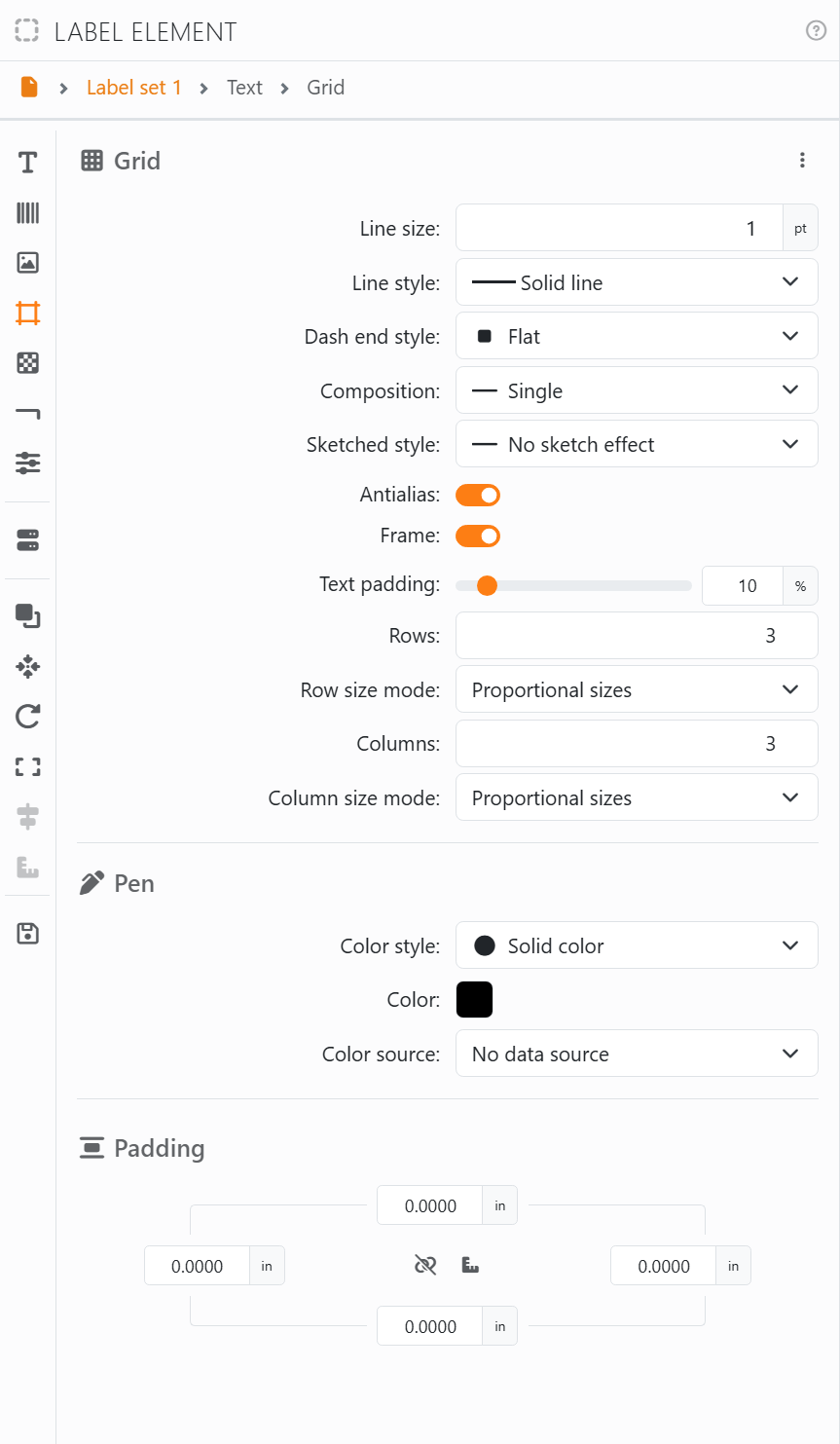
The grid appears once its Line size is above 0: that's the thickness of its lines, in points. Until then the section shows only that box.
| The grid | |
| Line style, Dash end style, Composition, Sketched style, Antialias | How the lines are drawn - solid, dashed or dotted, single or double, straight or hand-drawn. See Borders, which use the same styles. |
| Frame | The line round the outside. Switch it off to have only the lines between the cells. |
| Text padding | How far a text in the cells keeps from their lines. |
| Rows, Columns | How many, from 1 to 100. |
| Row size mode, Column size mode | Proportional sizes: all the same, sharing the element's size. Fixed size: all the same, at the Row height or Column width you give. Custom sizes: one size each - see below. |
| Pen | The color of the lines. |
| Padding | Space between the edge of the element and the grid. See Padding. |
Custom sizes. With Custom sizes, you get a box for each row, or each column: Row 1, Row 2 and so on. You give every one but the last; the last gets what's left, and its box shows how much that is. The sizes are real lengths: they stay the same when you resize the element.
If the sizes add up to more than the element, the rows or columns that don't fit simply aren't drawn - and they come back when you make the element bigger. Fewer rows and then more again gives you back the sizes you had.




























