
LabeljoyNew version
Shadows
A shadow falls behind the parts of an element you pick - its text, its border, its picture. It's in the element's Properties, under Shadow.
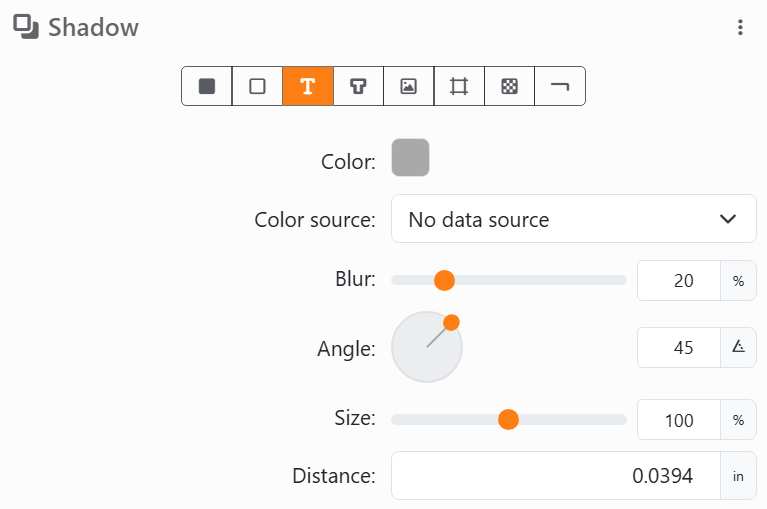
The row of buttons says what casts a shadow: Background, Border, Text, Text outline, Image, Grid, Pattern and Line. Pick one or more; with none, there's no shadow and the rest is hidden.
| The settings | |
| Color | The shadow's color, and in the picker its opacity - a lighter shadow is a more transparent one. Color source can take it from your data, as for any color. |
| Blur | From 0% (sharp) to 100% (soft). Double-click the slider for 20%. |
| Angle | Which way it falls, on a dial. |
| Size | From 0% to 200% of the part that casts it. Double-click the slider for 100%. |
| Distance | How far it falls, up to 4 in (10 cm). |
A barcode casts no shadow: there's no button for it. A part casts one only if it's there - a Background shadow needs a background that isn't transparent, a Border one a border, a Text outline one an outline. A page element's shadow has no Color source. The ⋮ menu has Copy shadow, Paste and Reset all, which takes it away.
See also




























