No AI assistant can work in Labeljoy until you allow it, in Settings, section External AI. The section is there with any activated license - Flex, Business or Enterprise - as long as Care+ is active; in a demo copy it isn't shown at all. What External AI is and which assistants can use it: External AI.
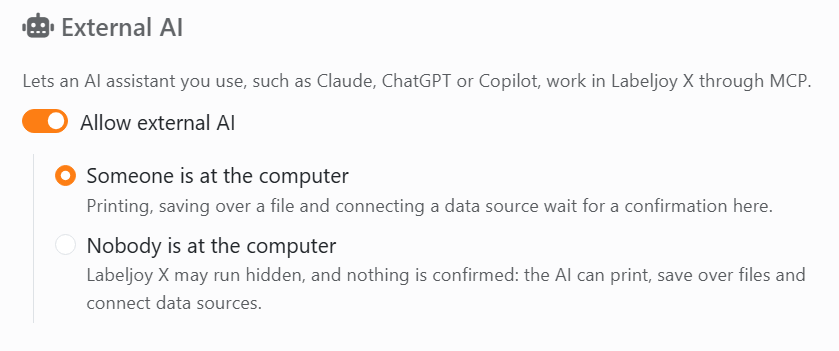
Switch it on. Open External AI and turn on Allow external AI. Then pick the one that fits:
| External AI | |
| Allow external AI | Lets an AI assistant you use work in Labeljoy. Off, none can. Turning it on picks Someone is at the computer. |
| Someone is at the computer | You're working with the AI. Before it prints, saves over a file, deletes one of your templates, or reads a data file or the clipboard, Labeljoy asks you first, in its own window. |
| Nobody is at the computer | For a server or a job that runs on its own. Labeljoy may run hidden, and it asks nothing: the AI can print, save over files and connect data sources. |
Which to pick. Choose Someone is at the computer whenever a person is there to answer: nothing that can't be taken back happens without a yes. Choose Nobody is at the computer only for a computer that works on its own - a print server, a job started at night: there Labeljoy asks nothing, and the AI prints, saves over files and connects data with nobody to say yes. How each one behaves while the AI works is in Working with an external AI.
Next, add the Labeljoy MCP server to your AI assistant: Connecting your AI assistant.
To stop it, turn off Allow external AI. The AI's next action is refused, and it's told to ask you to turn it on again.