
The workspace
The Labeljoy window has five parts, and they stay put whatever you're doing. Get to know them and the rest of this guide will be much easier to follow.
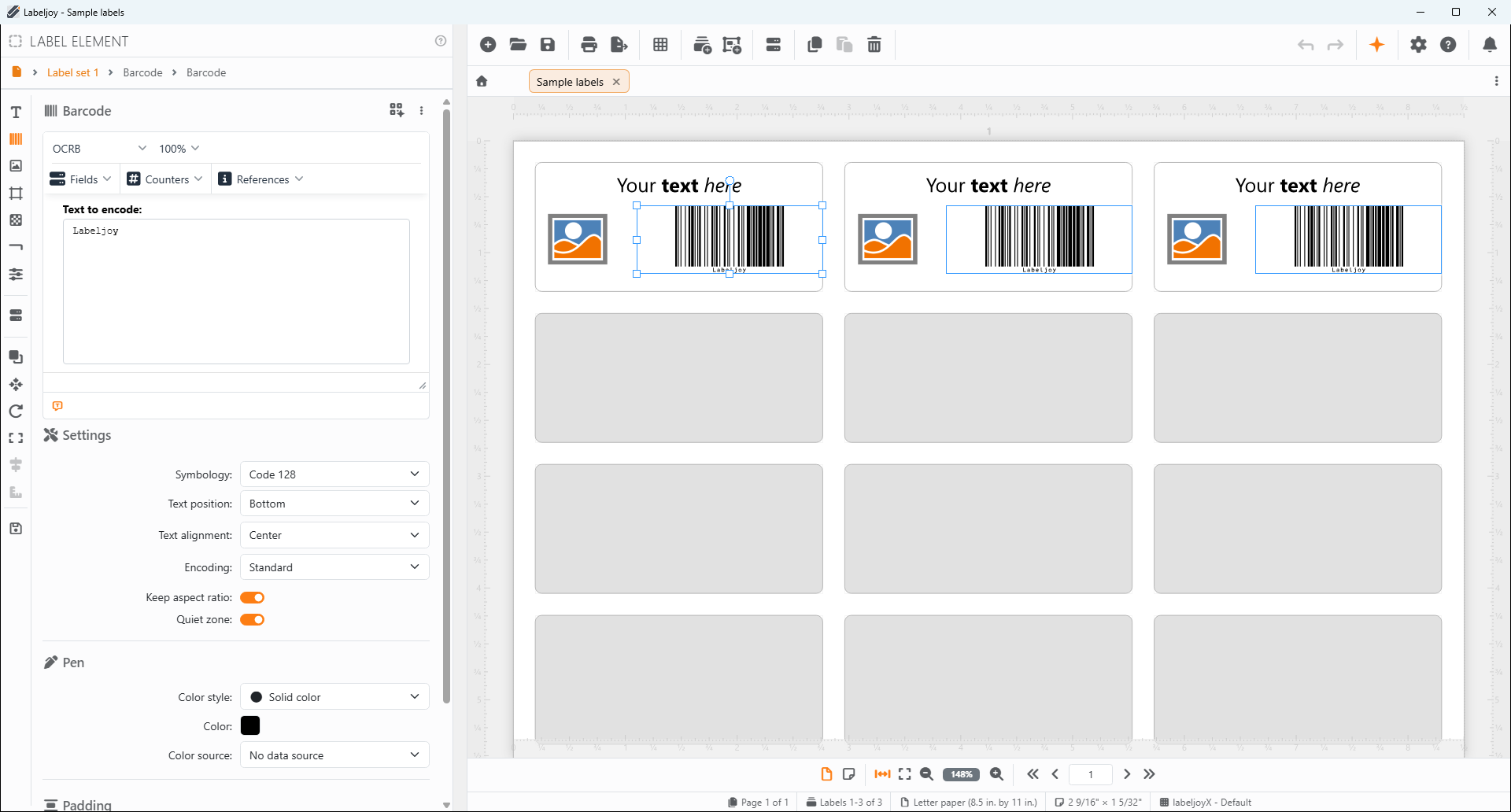
| The parts of the window | |
| The toolbar | Along the top. Its buttons open the panels for creating, opening, saving, printing and exporting documents, for designing your labels, and for the settings and help. |
| The document tabs | Under the toolbar, one tab for each open document. The house at the left end takes you back to the home screen. |
| The tools panel | The column on the left. It shows the panel for whatever you're doing - the properties of what you selected, or the panel a toolbar button opened. |
| The work area | The middle of the window, where your labels are drawn just as they'll print. Click something to select it, drag it to move it. |
| The status bar | Along the bottom: the view, the zoom and the pages, and what you're looking at. |
How they work together. Click an element in the work area and the tools panel shows its properties; change them there, and the work area shows the result straight away. The toolbar button of the panel on show is lit orange. Want the tools panel wider or narrower? Drag its right edge.
The home screen. When no document is open - or whenever you click the house at the left of the tabs - the work area makes way for the home screen, where you start a new document or open one you used recently. The toolbar buttons that need a document are dimmed there.
When a document is protected. A document can have a password that stops it being edited. You can still look at it, print it and export it, but Labeljoy won't let you change it:
- in the toolbar, Layout, Add label set, Add element, Data source, Paste, Delete, Undo and Redo are dimmed;
- clicking the label always shows the Document panel, never the panels of a label set or an element, and the Layout panel doesn't open;
- in the work area, you can't move, resize or rotate anything, the right-click menus don't appear, and you can't drop pictures or data files onto the label.
To change it anyway, click Enable editing at the top of the Document panel and type the password: the document can be edited until you close it, and it stays protected. Remove password, just below, asks for the password and takes all the protection off: save the document to keep it that way. To set a password, see Protecting a document.
Help while you work. Joy, the AI assistant, the Help panel and the bell of notifications are at the right end of the toolbar. Plenty of commands have a key too: see Keyboard shortcuts.




























