
LabeljoyNew version
The Properties section holds what an element is as a whole, whatever it contains: its look round the edges, where it is, and how it behaves. Open it with Properties on the strip, or with Edit common properties when you right-click the element.
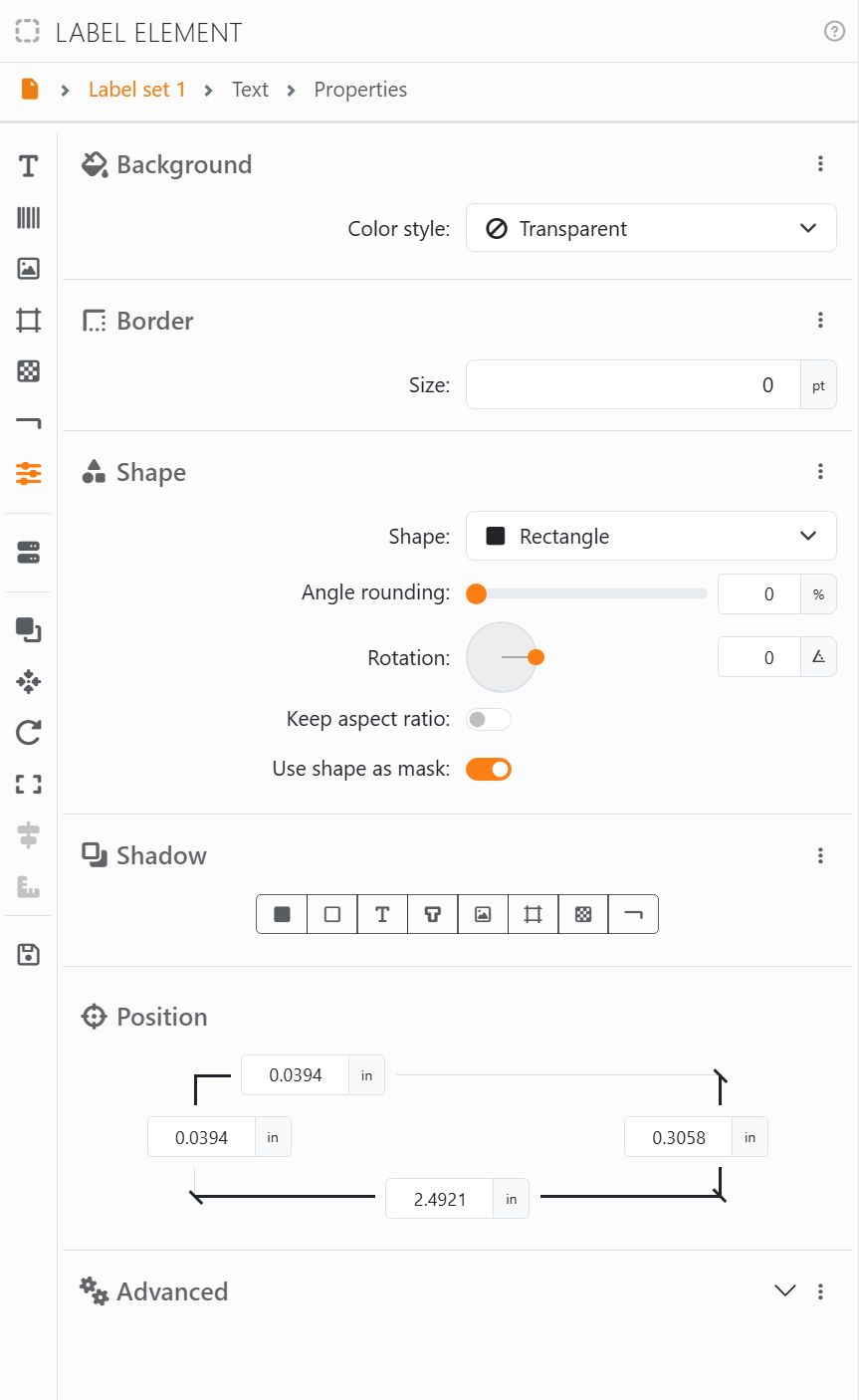
| Properties | |
| Background | A color, or a fade, behind everything in the element. See Backgrounds. |
| Border | A line round the element. See Borders. |
| Shape | The element's outline: a rectangle, a circle, a star, a speech bubble and many more. With Use shape as mask on, what's in the element is cut to that shape. See Shapes. |
| Shadow | A shadow behind the parts you pick - the background, the border, the text and so on. See Shadows. |
| Position | Where the element is and how big: from the top and the left edge of the label, and its width and height. For a rotated element, it's the box round it. See Position and size. |
Advanced, at the bottom, opens to show:
| Advanced | |
| Name | Up to 32 characters. It's how the element shows in the Document panel and at the top of the panel, and how Joy knows which element you mean. |
| Conditional visibility | Prints the element only on some labels: pick a field of your data, and the element is left off the labels where that field is 0 or false. With no data connected, it offers Connect data source. |
| Enable mouse movements | Switch it off to lock the element for the mouse and the arrow keys: a padlock shows on it. You can still change it here, and with Move to, Align, Fit and Rotate. |
| Include in print and export | Switch it off and the element shows on screen only - a note for yourself, a guide. A crossed-out printer shows on it. |
| Components order | What's drawn in front of what inside the element. The top of the list is in front: drag the contents up or down to change it. See Draw order. |
The ⋮ menu of Advanced copies these settings to paste into another element: Copy all takes them with the position and the components order, Copy advanced only the settings, Copy position and Copy component order only those. Its Reset to defaults puts the settings, the position and size and the components order back as a new element has them, but keeps the name; the background, border, shape and shadow stay as they are.




























