
The work area is the big space in the middle of the window, where your document is drawn just as it'll print. It's where you select the parts of a label and move, resize and rotate them.
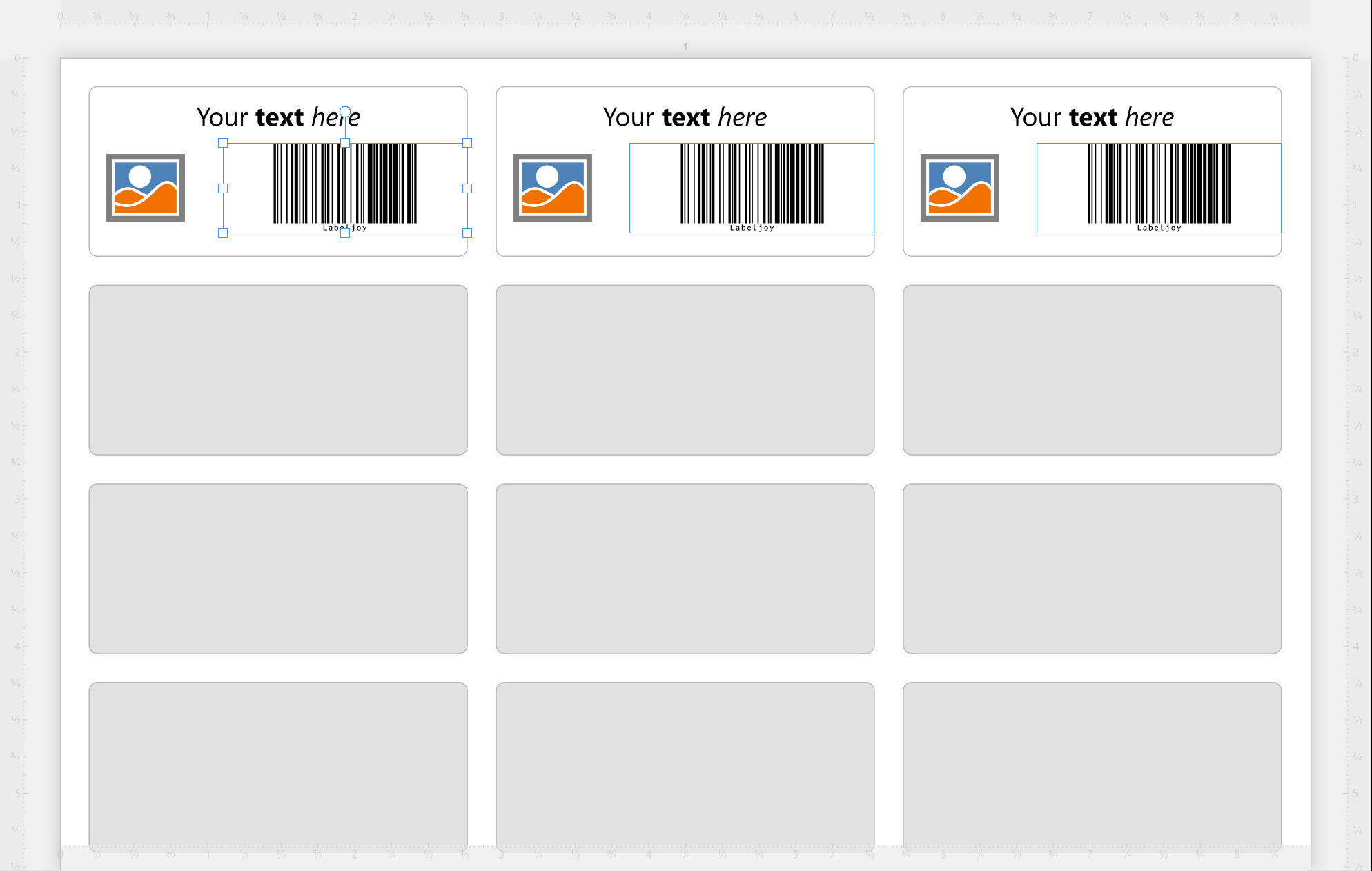
Page view and label view. Switch between them with the two buttons at the left of the status bar.
| The two views | |
| Page view | Whole pages, as they'll be printed: the labels on the sheet, the page elements, and the printer margins. |
| Label view | Each label on its own, one after the other. Page elements aren't shown, and the rulers start from the corner of each label. |
Each document remembers its own view. Above each page, or each label, is its number; in label view it reads page - label. You can hide these numbers in Settings.
The rulers measure from the top left corner of each page - or of each label, in label view - in the unit of measure you picked in Settings. That's also where you choose which sides have rulers, if any.
| Selecting | |
| Click | Selects what you click: an element, or a label, which selects its label set. The tools panel shows its panel. Click the page away from the labels and the Document panel opens, with the selection left as it is; click outside the pages to select nothing. |
| Drag across an empty spot | Selects every element the rectangle touches - the elements of one label set, or page elements, depending on where you start - in place of what was selected. The elements don't need to be all the way inside it. |
Ctrl+click adds an element to the selection, or takes it out. You can select elements of one label set together, or page elements together, but not a mix of the two: Ctrl+click an element of another label set and the selection starts again there. Ctrl+A selects all the elements the selection can take - every element of the label set you're working on, or every page element.
With several elements selected, click one of them to make it the reference: it gets a thicker frame, and Align and Same size line the others up with it. More in Selecting elements.
Moving, resizing and rotating. Drag a selected element to move it. Drag one of the square handles on its frame to resize it, and the round handle above it to rotate it. While you drag, a box shows the position, the size and the angle. Changed your mind? Every move, resize or rotation undoes in one step.
Keys you can hold while dragging, the arrow keys and the tools that line elements up are in Moving, resizing and rotating.
While you move or resize with the mouse, a grid appears over the label and the element snaps to it. The grid follows the rulers, so it gets finer as you zoom in. The arrow keys never snap. Don't want snapping? Switch it off in Settings.
| Markers on a selected element | |
| Padlock | The element is locked for the mouse and the arrow keys: you can't drag, resize or rotate it on the label. You can still change it in its panel, and with Move to, Align, Fit and Rotate. |
| Crossed-out printer | The element shows on screen but doesn't print. |
Right-click an element, a label or the page for a menu of what you can do with it. Right-clicking doesn't change the selection until you pick a command.
| Right-click an element | |
| Edit text, barcode, image, grid, pattern, line, common properties | Open the element's panel on that section. |
| Show field list | Opens the Data source panel. It reads Connect data source... when the label set has no data yet. Elements on a label only. |
| Copy as image, Save as image... | The element as a picture, to the clipboard or to a file. |
| Copy, Paste, Cut, Delete | Like the toolbar's, but for the element you right-clicked only, even when others are selected too. |
| Bring to front, Send to back | Put the element in front of the others, or behind them. |
| Save in element library | Keeps the element, so you can use it again. |
| Right-click a label | |
| Add element | Opens the element library. |
| Add label set | Adds a label set based on this one. |
| Edit common properties | Opens the Label set panel. |
| Show field list | Same as for an element. |
| Copy as image, Save as image... | The label as a picture. |
| Copy, Paste, Cut, Delete | The whole label set. |
| Right-click the page | |
| Add label set | Adds a label set. |
| Edit layout | Opens the Layout panel. |
| Copy as image, Save as image... | The page as a picture. |
| Paste | Reads Paste label set or Paste page elements, depending on what you copied. |
| Save, Close | Save the document, or close it. Save works when there are unsaved changes, Close when more than one document is open. |
On a protected document, the right-click menus don't appear.
Dropping things onto the work area. You can drag things in from outside Labeljoy, or from the tools panel. While you drag, the work area turns orange and the spot where it'll land gets a frame.
| What you can drop | |
| A Labeljoy document | Opens it. You can drop several at once. |
| A picture | On a label, it becomes an image element of the label, sized to fit. On the page, it becomes a page element. |
| A data file, such as a spreadsheet | On a label: connects it to that label set as its data source. |
| A field of the Data source panel | On its own label set: becomes a new element, or is added to the element you drop it on. |
| An element of the element library | On a label, or on the page in page view. |
Scrolling and zooming have pages of their own: Navigating pages and labels and Zoom. Rest the mouse on an element or a label and its name pops up - once Tooltips is switched on in the Settings. It starts off.




























