
The Document panel lists everything in the document - its label sets, the elements on them and the page elements - and tells you about its file. It shows up in the tools panel when you click the page, or the empty area around it, in the work area.
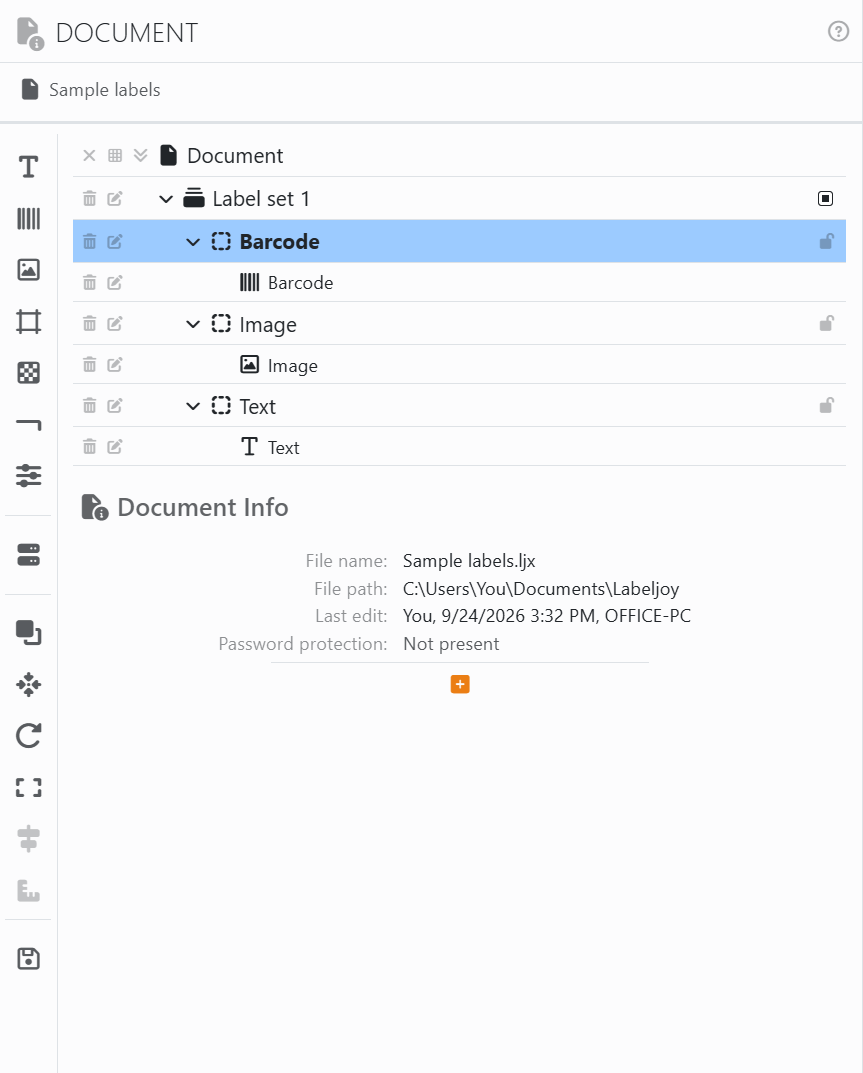
The list. The document is at the top, with its label sets under it and the elements of each label set under those. Open an element and you'll see what it holds: text, barcode, image, grid, pattern or line. Page elements drawn over the labels come before the label sets, and those drawn under them after. The buttons at the start of each row do the job for that row:
| On the Document row | |
| × | Closes the document. If it has unsaved changes, Labeljoy asks first. |
| The grid | Opens the Layout panel: the paper, and the labels on it. |
| The double arrow | Opens or closes every row of the list at once. |
| On a label set | |
| The bin | Deletes the label set, with its elements. |
| The pencil | Opens the label set's panel. |
| The name | Selects the label set, or unselects it. |
| The square, on the right | Selects all the label set's elements, or unselects them. |
| On an element | |
| The bin | Deletes the element. |
| The pencil | Opens the element's panel, on its properties. |
| The name | Adds the element to the selection, or takes it out. You can select several elements of the same label set, or several page elements, this way. |
| The padlock, on the right | Locks the element where it is: you can't move or resize it with the mouse or the arrow keys. You can still change it in its panel. Click again to unlock it. |
| On what an element holds | |
| The bin | Empties it: the text, the barcode or the image goes, and the rest of the element stays. |
| The pencil | Opens the element's panel, at that section. |
Deleting from the list works just like the Delete key: Undo brings back what you deleted.
The strip on the left works on what you've selected in the list. Its first icons - text, barcode, image, grid, pattern, line and properties - open the panel of the selected element at that section. Under them are Data source; the tools for the selected elements - Arrange, Move to, Rotate, Fit, Align and Same size; and Save in element library. The ones that make no sense for what's selected are dimmed: Align needs at least two elements, for example.
Document Info, under the list, tells you about the file:
| Document Info | |
| File name, File path | Where the document is saved. |
| Last edit | Who saved it last, when, and on which computer. A document you haven't saved yet says Not saved yet. |
| Password protection | An icon for each kind of protection it has - open, edit, and print or export - or Not present. See Protecting a document. |
| + | Shows more: how many pages, label sets, labels and elements the document has, its printer, and its layout. Click − to hide them again. |
On a protected document, the top of the panel says so, the list can't be changed and the strip is dimmed. Enable editing and Remove password are right there: see Protecting a document.




























